7 Best Photo Recovery Software to get Back Your Images

Have you accidentally deleted your photos or lost access to the device where they were stored, and are now looking for a recovery tool? Or maybe you've already tried one and realized they're not all created equal when it comes to lost photos?
The right software can make a huge difference in what you get back. There are just so many different options and each one promises a lot. To help you select the one that won’t disappoint, we compared popular recovery tools based on how well they work for photos recovery. If you need to restore deleted images, our list may include the option that works best for your situation.
What We Looked for in Photo Recovery Software

You should know, photo recovery is not quite the same as general file recovery. Photos and pictures, especially from cameras and SD cards, often come in large sizes, use RAW formats, and may be stored in fragmented chunks. This changes what actually affects the outcome. That means some evaluation criteria carry more weight here than they would in a broader recovery context:
- • Scan quality was our top priority. How deeply a tool scans, and how many recoverable photos it finds, varies from one program to the next. Scans should be deep enough to find photos that have been deleted, formatted over, or lost to file system damage, not just files that were recently removed and are still easy to locate.
- • We also considered supported file formats, especially photo types like CR2, NEF, ARW, and DNG. Best recovery tools should be able to detect and recover them. And tools that can work with both standard formats (JPG, PNG) and professional formats ranked higher.
- • Preview quality was another very important factor. You should be able to see your photos before committing to a recovery. Not every tool on our list offers this, some of our picks have limited or no preview functionality at all. They still made the cut because they deliver in other areas. But all else being equal, we gravitated toward tools that let you see what you're getting before you pay or save anything.
- • We evaluated how well tools handle damaged or formatted storage. Many real recovery cases involve SD cards that show errors or prompt formatting. Strong tools can still detect photos even when the file system is no longer readable, which often makes the difference between partial recovery and getting nothing.
- • Ease of use also played a role. A clear interface, simple filters, and quick access to results help you locate photos faster, especially when you deal with large photo libraries.
- • Finally, we considered value. Free limits, pricing, and overall reliability all factored into the selection. A tool that lets you confirm recoverable photos before saving them stands out more than one that only lists files without any way to verify them.
To compile this list of photo recovery software for PC, we carefully reviewed official product pages and release notes. We worked with each tool in real recovery scenarios to see how it performs with deleted, formatted, and corrupted photo storage. We compared these results with feedback from independent sources such as Reddit discussions, tech forums, and user reviews.
7 Best Image Recovery Software
Now, let’s move on to the best deleted photo recovery apps. Each option is worth your attention, however the tools listed higher are generally more reliable for photo recovery and deliver better results in most situations. The options here are great, but you can also discover more tools, there are plenty of additional options worth checking out.
1. Disk Drill
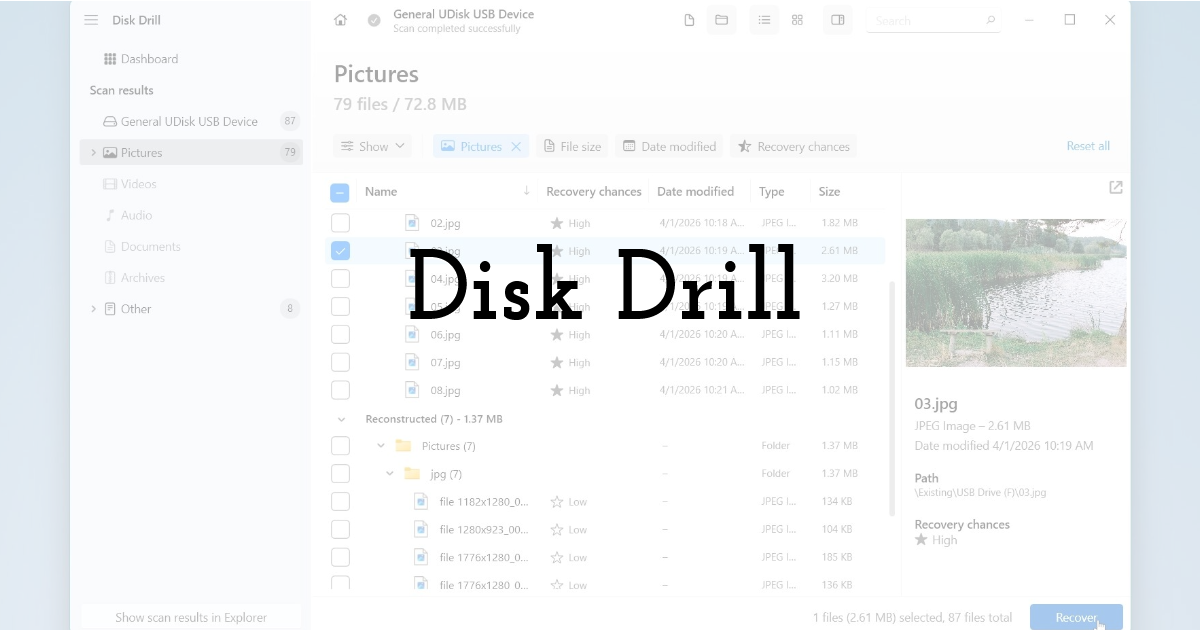
In the top spot we have Disk Drill Photo Recovery, one of the most well-rounded photo recovery tools available, and it works on both Windows and Mac. It's approachable enough for first-time users but capable enough to handle serious recovery situations like formatted cards, corrupted file systems, RAW files from professional cameras, you name it.
Disk Drill supports over 100 image formats, including common ones like JPEG, PNG, BMP, and TIFF, as well as RAW formats from all the major camera brands: CR2 from Canon, NEF from Nikon, ARW from Sony, RAF from Fujifilm, and more. It performs consistently across FAT32, exFAT, NTFS, and on Mac, HFS+ and APFS. For harder recovery jobs it holds up better than most tools in its class.
Pros
- • Deep RAW format support covering all major camera brands
- • Advanced Camera Recovery module for fragmented files from DSLRs and action cameras
- • Preview and recover files before the scan completes
- • Works across virtually all file systems and storage devices
- • Includes byte-to-byte backup for failing drives
- • Pause and resume support for long scans
Cons
- • The free version is handy for testing but has a recovery cap, so larger jobs require an upgrade
The free version lets you scan and preview everything, and Windows users can recover up to 100 MB before needing to upgrade. It's enough to test whether Disk Drill can recover deleted photos. Disk Drill Pro starts at $89, with both subscription and lifetime license options available depending on your needs.
2. UFS Explorer Standard Recovery
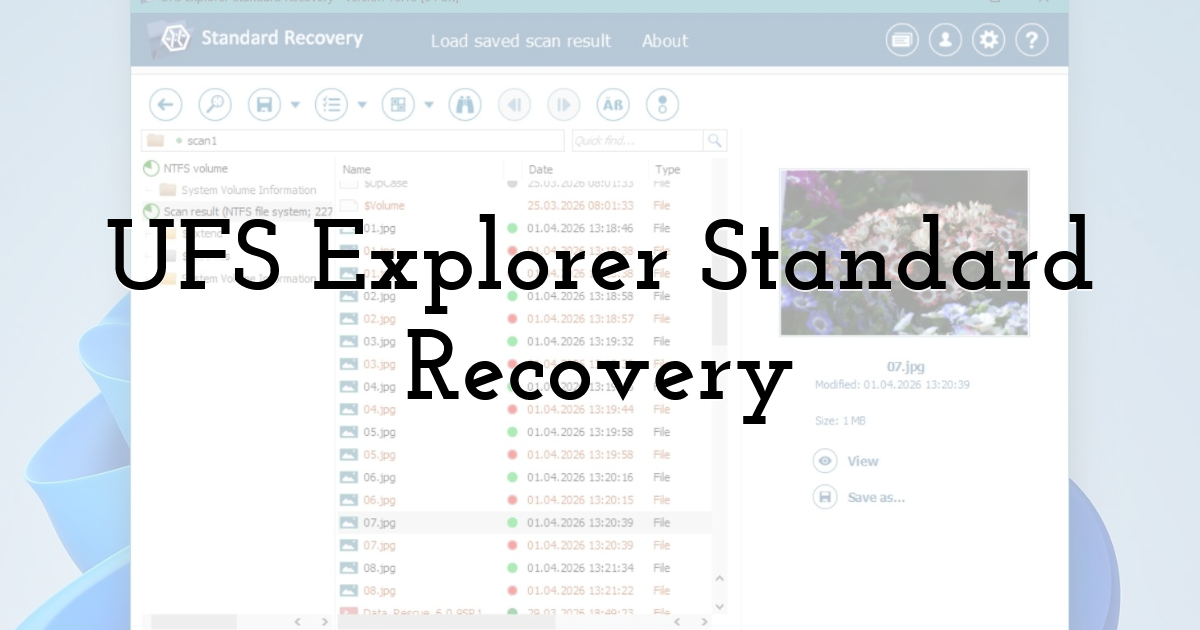
UFS Explorer Standard Recovery is a capable tool that stands out mainly for its broad compatibility. It runs on Windows, Mac, and Linux, and supports an unusually wide range of file systems, including NTFS, FAT32, exFAT, HFS+, APFS, EXT3, and EXT4. It also handles RAID arrays, NAS devices, and virtual disk images, which makes it a legitimate option for more complex recovery scenarios.
That versatility comes with a tradeoff, though. The interface is functional but built with technical users in mind, and the multi-step scanning process can feel unintuitive if you're not already familiar with recovery software. It performs well for recently deleted files across most supported file systems, though folder structures can occasionally go missing on FAT32 and exFAT, and signature scanning struggles with some less common formats like FFF, IIQ, and SRF. Previews load slowly on large libraries, and recovery can't begin until the scan is fully complete.
Pros
- • Wide file system and platform support including Linux
- • Handles RAID arrays, NAS devices, and virtual disk images
- • Disk imaging for safer recovery from fragile drives
- • In-depth settings for advanced users
- • Customizable file type selection
Cons
- • Interface is difficult to navigate for casual users
- • Demo version caps recovery at files under 256 KB
- • File previews are noticeably slow on large libraries
- • Recovery cannot begin until the scan finishes
- • No session manager
UFS Explorer Standard Recovery is positioned as a mid-to-premium option. The base version starts at $69.95, and it is available for Windows, macOS, and Linux.
3. DiskGenius
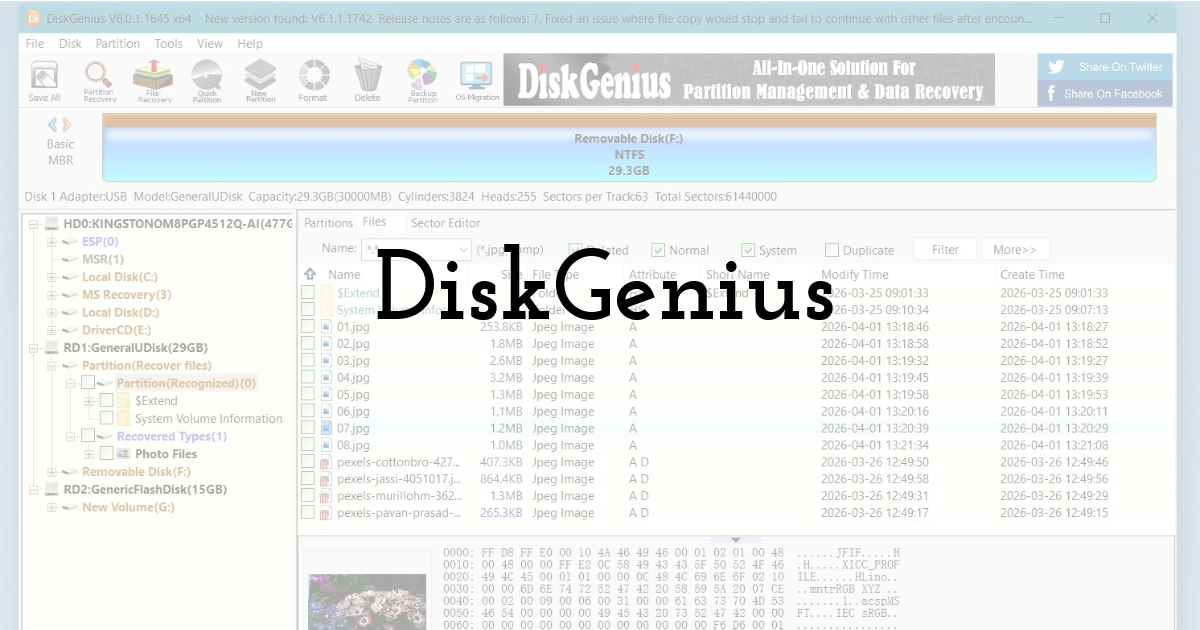
DiskGenius is primarily a disk management tool that also doubles as a capable photo recovery option. That dual purpose gives it a broader feature set than most recovery-only tools, but it also makes for a cluttered interface that takes some getting used to. If you're comfortable navigating complex software, that won't be a dealbreaker. If you're looking for something clean and intuitive, it probably will be.
Recovery performance is solid, particularly on Windows file systems. Quick scans handle recently deleted files well on NTFS, FAT32, exFAT, and even EXT4, while deep scans retrieve most data from Windows drives, though folder structures can sometimes be incomplete. RAW format support is a mixed bag, it handles NEF, CRW, and GPR reliably but struggles with SRF and Canon's CR2 and CR3 formats.
Pros
- • Solid recovery performance on Windows file systems
- • Includes advanced tools like a built-in HEX data editor
- • Useful disk management features alongside recovery
- • Lets you select specific file types to search for, which speeds up scanning
- • Can back up the partition table of your storage device
Cons
- • Cluttered, outdated interface
- • Free version only recovers files under 64 KB
- • Struggles with some RAW formats including CR2, CR3, and SRF
- • Clunky file previews
DiskGenius offers a one-time payment model with several tiers, depending on how advanced the features you need are. The Standard version starts at around $69.90 for a lifetime license (1 PC), which places it in the same price range as many mid-tier recovery tools. There is also a Professional version, typically priced at around $99.90, which unlocks more advanced features such as RAID recovery, deeper file system access, and additional disk management tools.
4. DMDE
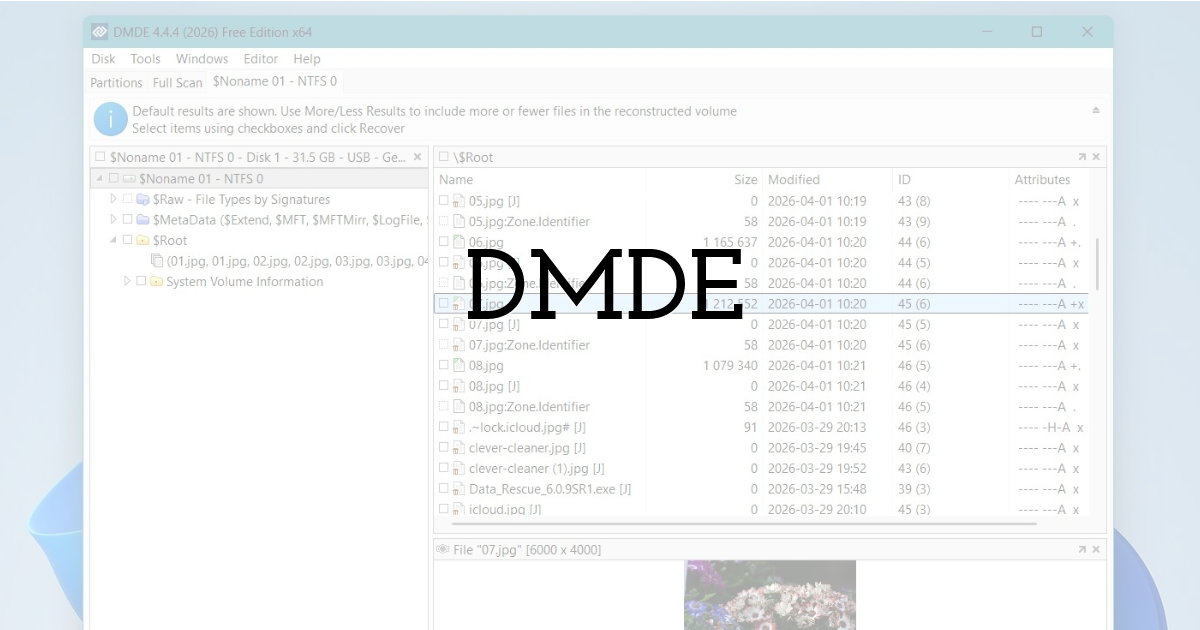
In fourth place we have DMDE, a recovery tool that prioritizes speed and functionality over ease of use.The interface is dated and takes some getting used to, but advanced users will appreciate the level of control it offers, including custom file signature support, which means you can technically teach it to recover almost any format, even ones it doesn't recognize out of the box.
Recovery performance is reliable for common formats like JPEG, PNG, and BMP, and it holds up well on NTFS, HFS+, and FAT32 file systems. RAW support covers the major formats like CR2 and NEF, but some less common ones like MRW and RWL aren't supported without customization. APFS and EXT4 recovery can also be inconsistent. The preview function is notably limited, supporting only a small number of image formats, which makes it harder to assess what you're recovering before committing.
Pros
- • Fast scanning and recovery
- • Custom file signature support for virtually any format
- • Reliable performance on NTFS, HFS+ and FAT32
- • Predicts the likelihood of successful file recovery
- • Handles complex recovery scenarios
Cons
- • Dated, unintuitive interface
- • Limited preview support for image formats
- • Struggles with some RAW formats like MRW and RWL without customization
- • No session manager
DMDE is one of the most affordable data recovery tools, with a flexible pricing structure. It offers a free version, which allows you to recover files from a single folder (up to 4,000 files at a time). Paid plans start with the Express license at $20 per year, designed for occasional use. The Standard version costs $48 as a one-time purchase, which unlocks full recovery without the main limitations of the free version.
5. DataRescue
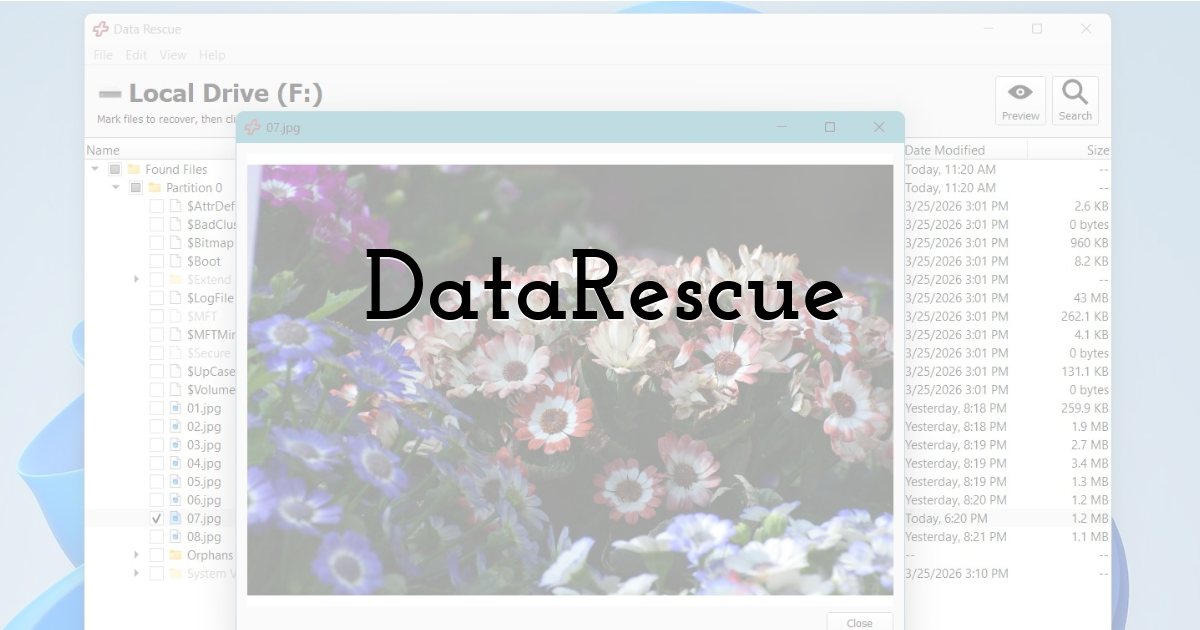
Next is Data Rescue 6, a professional-grade recovery tool with some genuinely useful features. It performs best on NTFS partitions, where Quick Scan handles recently deleted files well, though performance drops on exFAT and FAT32. RAW format support is limited, standard formats like JPEG and PNG recover consistently, but CR2, RAF, and ARW can be hit or miss, so it's better suited to casual users than professional photographers.
The built-in clone tool is a nice addition for safer recovery from failing drives, and FileIQ lets you add support for custom file types. The standard version is capped at five scans, and scanning can't be paused or resumed, so it's worth factoring that in before purchasing.
Pros
- • Good results with recently deleted files on NTFS partitions
- • Handles a wide range of standard photo and video formats
- • Can recover data from disk images
- • Duplicate file recognition and custom file type support via FileIQ
Cons
- • Weaker RAW format recovery
- • No thumbnail or real-time preview
- • Scanning is slow and cannot be paused or resumed
- • Standard version limits you to five scans
- • Limited filtering and file view option
Data Rescue uses a subscription-based pricing model, which makes it quite different from most recovery tools. The main entry option is the Standard license priced at $79, which gives you unlimited recovery for 30 days.
6. PhotoRec
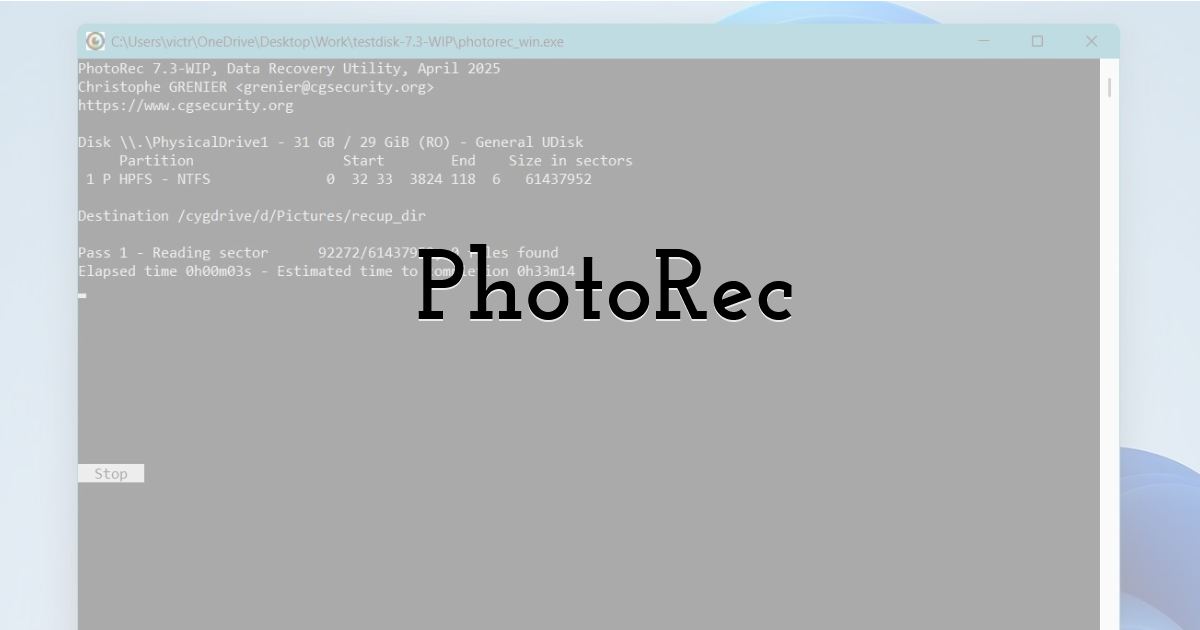
PhotoRec is a free, open-source recovery tool that works entirely by file signature and ignores the file system. This approach allows it to handle severe data loss cases, including drives with missing or damaged file systems that stop other tools. It supports close to 480 file signatures and can recover a wide range of photo formats such as JPG, BMP, CR2, CR3, NEF, and RW2.
The tradeoff is usability. PhotoRec was built for the command line, with a basic GUI later added for Windows users. It does not offer previews, original file names, or folder structure. Files return in bulk, so you need to sort and organize them manually. For a free tool with strong recovery capabilities, this is a reasonable compromise. For anyone who wants a polished experience, it is not the best fit.
Pros
- • Completely free and runs without installation
- • Strong signature-based recovery across nearly 480 file formats
- • Recovers from unmounted or file system-less drives
- • Lightweight and runs well on low-end hardware
Cons
- • Not user-friendly, especially for beginners
- • No file previews
- • Cannot restore original file names or folder structures
- • No byte-to-byte drive cloning
PhotoRec is completely free.
7. Recuva
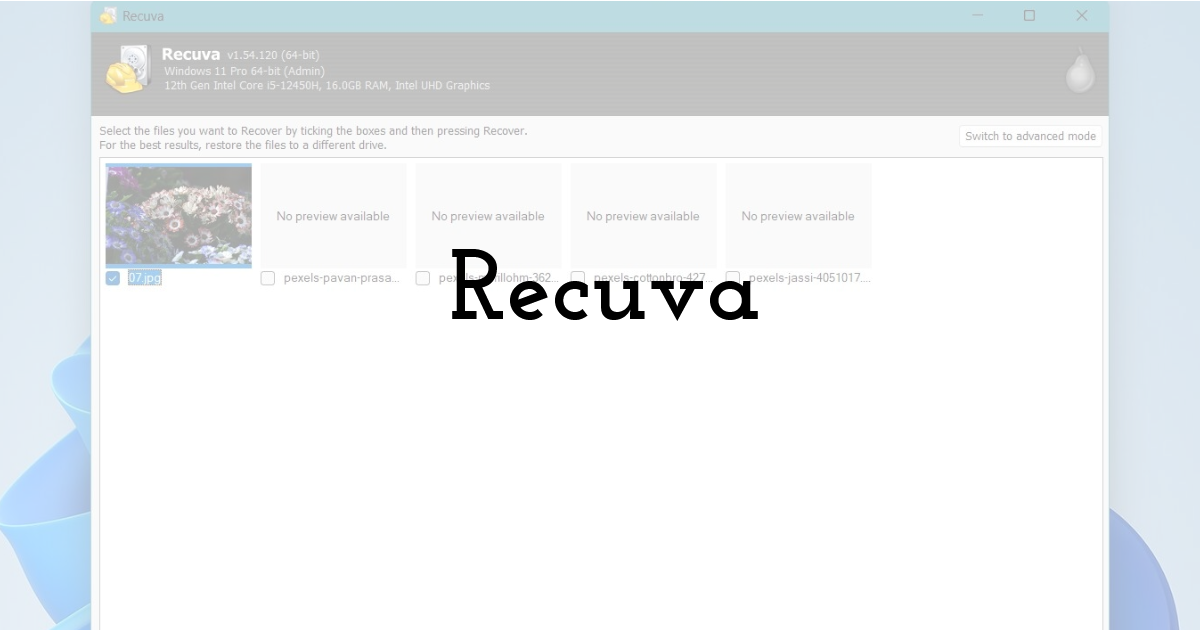
Last but not least, Recuva is free photo recovery software for Windows. It won't compete with professional solutions on depth or RAW format support, but for recovering recently deleted photos from healthy drives, it does the job. The interface is simple, scanning is quick, and there's no recovery cap, you can recover as many files as you find.
Performance holds up well for common formats like JPEG, PNG, BMP, and GIF across FAT32, exFAT, and NTFS. More demanding scenarios are where it runs into trouble, RAW files, corrupted storage, and complex recovery jobs are generally beyond what Recuva handles reliably. It's best thought of as a quick first attempt before reaching for something more powerful.
Pros
- • Completely free with unlimited recovery
- • Simple, easy to use interface
- • Fast scanning, ideal for recently deleted files
- • Lightweight with two GUI modes for beginners and advanced users
Cons
- • Limited RAW format support
- • Struggles with damaged or corrupted storage
- • Preview limited to a few common formats
- • Can crash on larger scans
Recuva is one of the few recovery tools that offers a fully free version, which allows you to recover files without a strict data limit. This makes it a popular choice for basic photo recovery and simple cases.There is also a Professional version priced at $24.95, which adds features like automatic updates, virtual drive support, and priority support.
How to Recover Deleted Photos?
Every tool is slightly different, but the core process is usually the same:
- 1. Do not save new files to the SD card or drive where the photos were deleted. If your photos are not deleted but simply inaccessible, do not format or repair the device.
- 2. Connect the device/drive to your computer.
- 3. Select the device and start a scan. Most tools offer a quick scan first, followed by a deeper scan if needed.
- 4. Use filters or folders (like Pictures or JPG/RAW) to locate the files you need, if the tool supports it.
- 5. Preview files. If the software of your choice allows previews, open photos before recovery to check if they are intact.
- 6. Save the recovered files to another drive to avoid overwriting anything.
You can also check backups if they are available, such as cloud storage or previous versions on your system. In more serious cases, especially when the device shows errors or does not respond properly, professional data recovery services may be the better option. In cases where recovered photos appear blurry or lower in quality, you can sometimes improve them with upscaling techniques.
Final Thoughts:
If we need to choose one overall best photo recovery software, it would be Disk Drill. It combines deep scanning, broad RAW format support, and an intuitive interface better than anything else on this list. The Advanced Camera Recovery module is a standout for photographers recovering fragmented files from DSLRs and action cameras, and one purchase covers both Windows and Mac.
That said, the right tool depends on your situation. Recuva and PhotoRec are both worth trying if you want a free option. UFS Explorer are strong choices for RAID or NAS devices. DMDE is a good pick for technically confident users who want speed and customization, and DiskGenius is solid if you also need disk management in the same package.
Until next time, Be creative! - Pix'sTory
Recommended posts
-

Simplifying HR Management for Creative Teams: The Benefits of All-in-One...
Read More › -

AI tools vs Custom software development : What's Best for a Startup?
Read More › -

From Event Snapshot to Marketing Visual: Rescuing Photos Before You Desig...
Read More › -
7 Best Photo Recovery Software to get Back Your Images
Read More › -

Top 7 Remote Team Monitoring Software Compared in 2026
Read More › -

Custom Software on High Alert: An Active Logic Review for 2026
Read More ›