4 Best Apps to Hide Photos and Videos on iPhone and Android in 2026
Most people do not think about their camera roll until someone else is holding the phone. A friend wants to show off a group photo and swipes one picture too far. A child grabs the tablet to watch a video and lands in an album that was never meant for them. A work colleague asks to see a screenshot and ends up scrolling past something personal. The default gallery on iPhone and Android puts convenience first, bringing together vacation photos, screenshots, documents, and anything sensitive you would rather keep to yourself.
Dedicated vault apps offer a separate place for that sensitive media. Rather than depending entirely on a phone's built-in hidden album, a purpose-built app can keep photos and videos in a private library with its own access protection and encryption. Importing files does not necessarily remove the originals or copies stored elsewhere, so separating private media from the camera roll also means checking what remains in the gallery and any backups.
Among the apps built specifically to solve this problem, Private Photo Vault is our top pick for most users. It stores personal photos and videos in a separate, passcode-protected library and runs on both iPhone and Android without requiring an account for local use. For readers who also want an open-source, self-hostable backup option they can inspect and control themselves, Ente is the strongest alternative. For Android users who want a long-running private gallery with a familiar workflow, Vaulty is also worth a close look.
The rest of this guide ranks four apps that each take a different approach to the same core job: keeping sensitive photos and videos private. The comparison covers encryption, local and cloud storage, account requirements, platform availability, everyday access protection, and setup for people who are not particularly technical. Below you will find a quick comparison table, a closer look at those criteria, and a breakdown of each app, including the trade-offs that come with every option on this list.
What to look for

Not every app that promises to hide photos and videos does it the same way, and the differences matter more than the marketing copy suggests. Here is what separates a useful private vault from an app that simply makes files less visible.
Encryption standard
Look for apps that state the specific encryption method used to protect stored media, such as AES-256. A vague claim of "bank-level security" with no named standard is a weaker signal than an app that explains its encryption approach.
On-device storage versus cloud dependency
Some apps keep everything local to the phone by default, while others upload content to a server as part of normal operation. Neither model is automatically better, but knowing which one you are getting helps explain what happens if your phone is lost or reset, or if you delete the app.
Account requirements
Apps that require an email sign-up tie your vault to an identity, but having an account does not necessarily mean encrypted content can be recovered through a password reset. Account-free apps skip sign-up entirely, which reduces the information needed to get started, while recovery still depends on the options each app provides.
Platform coverage
iPhone-only apps and Android-only apps are common in this category, and cross-platform availability does not always mean your vault itself syncs between devices. It is worth checking whether an app simply exists on both platforms or actually keeps vaults synchronized across them, and whether its features differ by platform.
Access protection methods
PIN codes and text passwords provide familiar ways to lock a vault, while biometric options like Face ID or fingerprint unlock offer a different balance of speed and convenience. A faster unlock method matters if you expect to use the vault often.
Ease of use
A vault you avoid because it is confusing defeats its own purpose. The import process needs to be manageable, and the organization tools should make private files easy to find without turning everyday use into a chore.
The 4 best apps to hide photos and videos on iPhone and Android
Each of the four apps below takes a different approach to keeping private media separate, with options ranging from local vault storage to open-source encrypted backup and a platform-specific private camera. The ranking reflects the criteria above, with attention to privacy design and how each app fits into everyday use. Private Photo Vault takes the top spot for its balance of simplicity and account-free local access, but each of the other three entries suits a specific kind of user.
| App | Best for | Key strength | Platform |
|---|---|---|---|
| Private Photo Vault | Most iPhone and Android users who want a simple, account-free vault | Passcode-protected, on-device vault with optional encrypted cloud backup | iPhone and Android |
| Ente | Users who want open-source, self-hostable encrypted backup | Auditable end-to-end encryption, self-hosting option | Cross-platform |
| Vaulty | Android users who want a long-established private gallery | Mature private gallery with private camera and album organization | Android (iOS listed as coming soon) |
| LockMyPix | iPhone users who want metadata-aware encrypted capture | Direct encrypted camera with automatic metadata stripping | iOS |
#1. Private Photo Vault - best for iPhone and Android users who want a simple, account-free photo and video vault
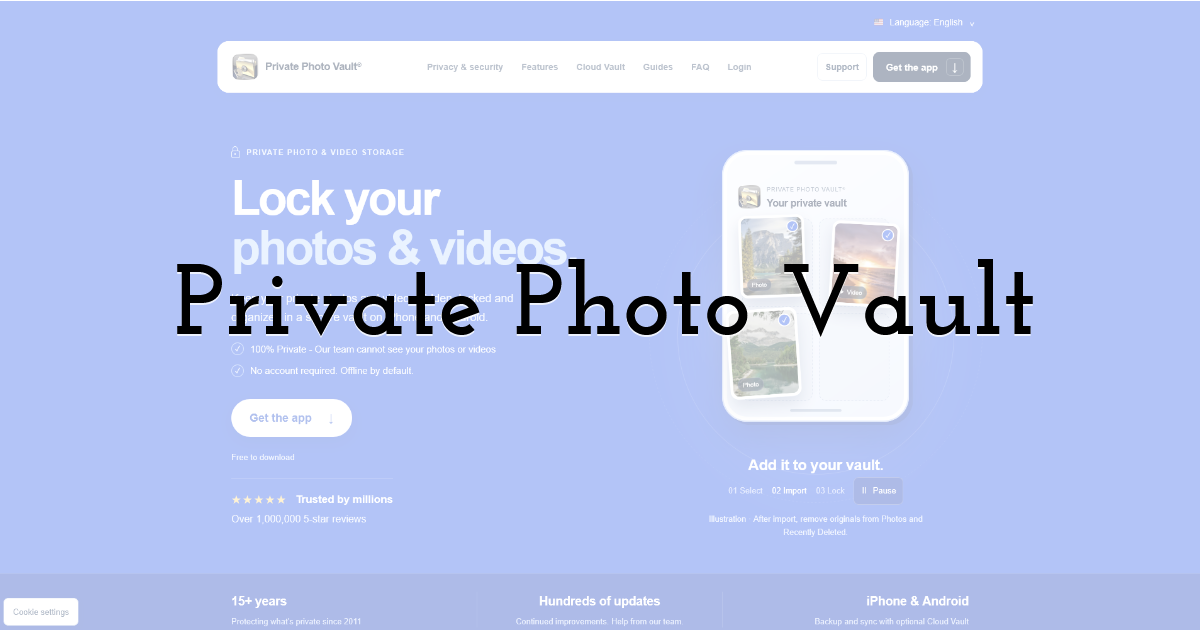
Private Photo Vault is designed around one core job: keeping sensitive photos and videos in a private library with its own access protection. For anyone searching for a way to hide personal media without a complicated setup, the Private Photo Vault app offers local vault storage on both iPhone and Android, though availability on both platforms should not be confused with identical features or automatic cross-platform syncing.
Once installed, photos and videos can be imported from the existing camera roll, then organized into albums inside the vault. Access is gated behind a passcode, with AES encryption for on-device storage, so unlocking the phone does not automatically open the private library. The core local functionality needs neither an account nor an internet connection, meaning an identity does not need to be attached to the vault just to start using it. Importing creates a separate-library copy rather than guaranteeing removal of every original, so checking the imported files and any existing backups matters before cleaning up source copies.
Key features:
- • Dedicated vault separate from the default camera roll, available on both iPhone and Android
- • Passcode-protected access with AES encryption for on-device storage
- • Import from the existing camera roll
- • Organized albums within the vault for sorting hidden media
- • Optional premium Cloud Vault with zero-knowledge encryption that protects files before upload
- • No account or internet connection required to use the core on-device vault
Pros:
- • Available on both major platforms, which matters for households or couples using different phones
- • No sign-up needed to begin hiding photos and videos, reducing setup and the amount of personal information needed to get started
- • A separate passcode helps protect the private library when someone else is using an unlocked phone
- • Straightforward import flow for media that is already sitting in the camera roll
- • The optional Cloud Vault provides encrypted off-device backup without making cloud storage part of everyone's setup
Cons:
- • The core experience is local-first by design, so users who want cloud backup need to opt into the premium Cloud Vault rather than getting it by default
- • Recovery depends on the options configured within the app; an account-free setup should not be treated as having an automatic email-based reset
- • Importing media into a separate vault does not by itself clean up original files or copies in other galleries and backups
Who it's best for: Everyday iPhone or Android users who want a separate, passcode-protected library for personal photos and videos, with local use available immediately and the option to add encrypted cloud backup later.
#2. Ente - best for open-source, self-hostable encrypted photo backup across platforms
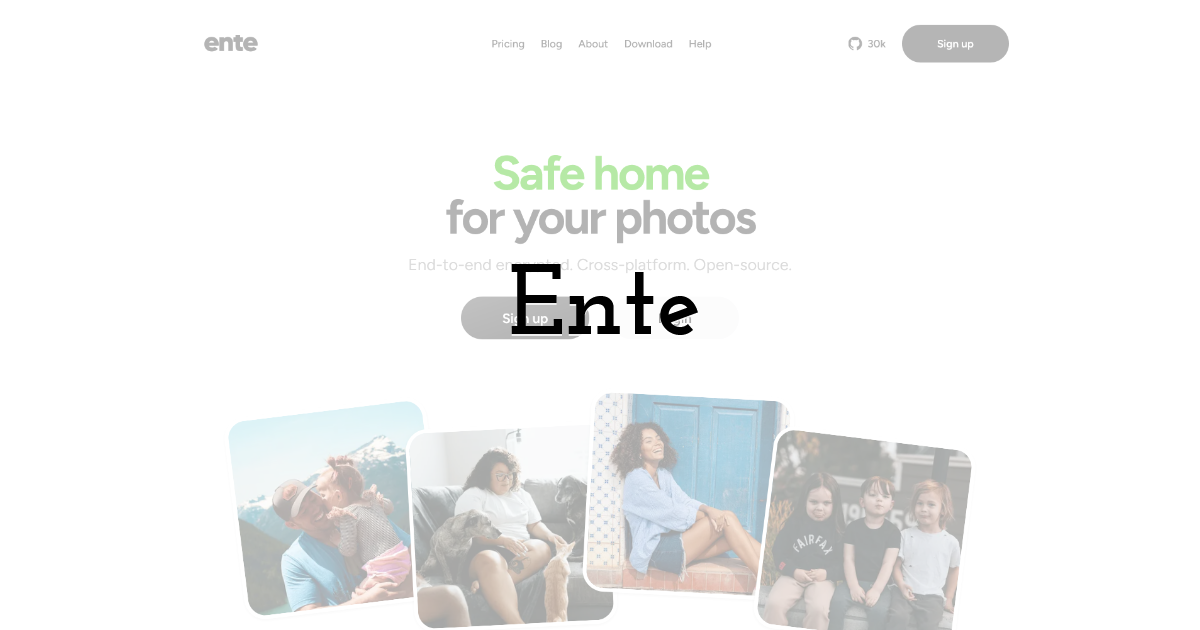
Ente takes a different approach from a pure on-device vault: it is an end-to-end encrypted photo and video storage service built around transparency and, for technically inclined users, control over the server. Because the codebase is open source, its encryption implementation is publicly available for review rather than something users have to take entirely on faith.
That openness is Ente's defining strength. Ente encrypts media so that the company cannot read it, and the self-hosting option lets technically comfortable users run the backend themselves rather than depend on Ente's infrastructure. This makes it more of a privacy-focused backup service than a quick hide-and-forget vault, an important distinction for anyone comparing private photo apps by how they store and protect files. Its appeal is strongest for people who want encrypted storage across platforms and are willing to think through where their backup lives, rather than simply adding a lock to a local photo collection.
Pros:
- • Open-source code lets technically minded users inspect the encryption implementation rather than relying only on marketing language
- • Self-hosting offers more control for users who do not want to depend on a third-party server
- • End-to-end encryption means stored media is not readable by Ente itself
- • Cross-platform availability suits people who move between devices or operating systems
Cons:
- • Self-hosting requires technical setup, which makes that option less suitable for users who want a simple, ready-to-go experience
- • It is fundamentally a backup and storage service rather than a dedicated on-device hiding app, so the use case is closer to encrypted cloud photo storage than a quick private gallery
Best for: Privacy-conscious users, especially those with some technical comfort, who want auditable end-to-end encryption and the option to control their own server rather than depending on a vendor's infrastructure by default.
#3. Vaulty - best for Android private-gallery workflows
Vaulty has been part of the Android private gallery category since 2011, giving it a long history on the platform. Its private gallery includes a built-in camera for capturing new photos and videos directly into the vault, while albums help organize the collection and imports can come from the existing gallery or the device share sheet.
Vaulty does not upload media to its own servers as part of its core gallery function, which keeps everyday use local by default. It also offers automatic online backup, so users who want off-device copies of their hidden media have that option rather than being limited to local storage. The app supports a PIN or text password for access, providing familiar ways to protect the private gallery without changing the basic workflow. Vaulty is developed by Squid Tooth LLC, an independent software company focused on privacy tools, and currently lists an iOS version as coming soon, so this remains an Android-specific recommendation.
Pros:
- • Over a decade of development on Android gives it a long-established private-gallery workflow
- • Built-in private camera lets users capture sensitive photos and videos directly into the vault without first saving them to the main camera roll
- • Automatic online backup is available for users who want their hidden media stored off-device as well as locally
- • PIN and text password options provide familiar access controls for people setting up a private gallery
Cons:
- • Not currently available for iPhone, since the iOS version is listed as coming soon rather than ready to use
- • Online backup settings need separate attention if the goal is to minimize off-device copies
Best for: Android users who want a long-established private gallery with a dedicated camera and the option of automatic online backup, without needing an iPhone-compatible solution.
#4. LockMyPix - best for iPhone users who want metadata-aware encrypted capture
LockMyPix is an iOS app that offers an end-to-end encrypted photo and video vault without requiring an account or tracking users. Access is protected with Face ID or a PIN, and its standout feature is a direct encrypted camera: photos and videos captured through that camera have their GPS location and camera metadata automatically stripped at capture, addressing information embedded in the files as well as access to the files themselves.
That metadata removal applies to media captured through LockMyPix's own camera, so it should not be treated as a promise about every photo imported from an existing camera roll. The app uses AES-256-GCM encryption for stored content and offers optional encrypted CloudKit sync across a user's Apple devices, with a recovery code instead of an account-based reset path. LockMyPix also includes basic editing tools and a document scanner, extending its usefulness beyond storing private photos and videos. For people who care about the location and device information attached to new captures, the camera's metadata handling is a practical reason to consider it alongside more general vault apps.
Pros:
- • Automatic metadata stripping on camera captures removes embedded location and device data
- • Face ID support offers quick biometric access as an alternative to entering a PIN
- • No account required, avoiding the need to attach an account identity to the vault
- • Includes editing tools and a document scanner, adding utility beyond storing private media
Cons:
- • Available on iOS, so it is not an option for Android users
- • Getting the camera's metadata-removal benefit means choosing LockMyPix before taking the photo, rather than using the regular Camera app first
Best for: iPhone users who want an encrypted vault paired with a privacy-conscious camera that automatically removes location and device metadata from new captures, without needing to create an account.
Moving photos and videos without losing track of copies
Before you generate any music, decide what the video needs to communicate. Write a single sentence that describes the viewer's takeaway, followed by the action you want them to take.
A small trial import makes setup easier to understand. Use an ordinary photo and a short video rather than starting with the only copies of important media. Open the imported photo at full size, play the video with sound, and confirm the files remain accessible after closing and reopening the app. Check how quickly the vault locks when switching to another app.
Next, decide whether the goal is local privacy, an off-device recovery copy, or both. A completed encrypted backup and its required credentials serve a different purpose from an app lock. If using sync, understand whether deleting an item also removes it from connected devices; synchronized libraries are not automatically independent recovery copies.
Only after checking the destination and the intended backup should source cleanup begin. Review the regular gallery, recently deleted area, shared albums, messaging attachments, and linked cloud libraries. A file imported from a chat can still exist in that conversation, and an image already shared with another person cannot be recalled simply by placing a copy in a vault. Avoid deleting an entire library to remove a handful of private items.
For new captures, a private camera can reduce this cleanup work by avoiding a normal camera-roll original. It does not change the status of older photos already copied or shared elsewhere.
Frequently asked questions
What's the difference between a dedicated photo vault app and a hidden album built into my phone's settings?
A built-in hidden album can provide useful protection: on current iOS, the Hidden album is locked by default, hidden items are removed from the normal library and other albums or widgets, and hiding syncs across iCloud devices. A dedicated vault app keeps a separate private library with its own access controls and, depending on the app, encryption and backup options beyond the phone's built-in tools. Vault apps also tend to offer organization features, like albums, built specifically around private content. Built-in protection may be enough for some users, while a separate vault suits those who want another access boundary and a different storage arrangement.
Which is best for iPhone users who specifically want automatic metadata removal from photos?
LockMyPix stands out here because its built-in encrypted camera automatically strips GPS location and camera metadata from photos and videos at capture. That addresses a different privacy concern from hiding a file, since embedded information can reveal details about where or when an image was taken if that information remains attached when shared. Just keep in mind that this automatic stripping applies to media captured through the app's own camera rather than every photo already sitting in your camera roll.
What's the difference between an account-free vault app and a cloud-backed encrypted photo service?
An account-free vault, like the core experience in Private Photo Vault, keeps photos and videos locked on the device itself without requiring sign-up for basic hiding and organization. A cloud-backed service, like Ente, centers on encrypted backup to a server (or a self-hosted server you control), adding an off-device copy while introducing different account and recovery arrangements. Some apps, including Private Photo Vault, also offer an optional premium cloud backup layer on top of the account-free core, allowing users to choose between local storage alone and an additional encrypted backup.
Which is best for Android users who want a long-running, familiar private gallery workflow?
Vaulty is the strongest fit for Android users specifically, given its development history since 2011 and its familiar private-gallery setup. Its dedicated camera saves new captures into the vault, albums provide organization, and automatic online backup is available for people who want copies beyond local storage. Since Vaulty's iPhone version is currently listed as coming soon, it remains an Android-specific recommendation rather than a solution for users who need both platforms.
Choosing the right app for you
If you want a vault available on both iPhone and Android, with no account needed for local use and optional encrypted cloud backup, Private Photo Vault is the starting point for most readers of this guide. If you specifically want open-source, auditable encryption with the option to self-host your backend, choose Ente instead, keeping in mind that it is closer to an encrypted backup service than a quick local vault. For Android users who want a long-established private gallery, Vaulty combines a built-in private camera with optional automatic online backup, though it is not yet available for iPhone. For iPhone users who care about removing GPS and camera metadata from new captures, LockMyPix's encrypted camera is the most targeted option on this list.
Whichever app you choose, the practical goal is to keep sensitive media behind access controls that fit how you use your phone. Set up the available passcode or biometric protection and understand recovery before relying on the vault; before removing source files, check that imports are accessible and consider where original or backup copies still remain. A separate private library can reduce accidental exposure when a friend, colleague, or child uses your phone, but it works best when the copies outside that library receive attention too.
Until next time, Be creative! - Pix'sTory