How to Let an AI Agent Control a Real Android Phone with MCP
AI agents got really good at browsers in 2025. The next step in 2026 is phones. Rather than writing fragile test scripts or going through the same flow over and over again, you describe the task in plain English and an agent does it on the phone for you. It opens the app, taps, types, scrolls and reports back.
The piece that makes this work is MCP (Model Context Protocol). This guide looks at how MCP links an agent to an Android phone, why a real device is generally better than an emulator for this, and how to set up AI phone automation on a real device.
What MCP does here
MCP is an open standard that allows an AI client to use external tools. The client can be anything from Claude Code, Codex or Cursor to any other app that supports remote MCP servers. A phone MCP server exposes a limited set of actions (take a screenshot, tap here, type this, open this app, etc.), and it's the model that decides when to invoke them.
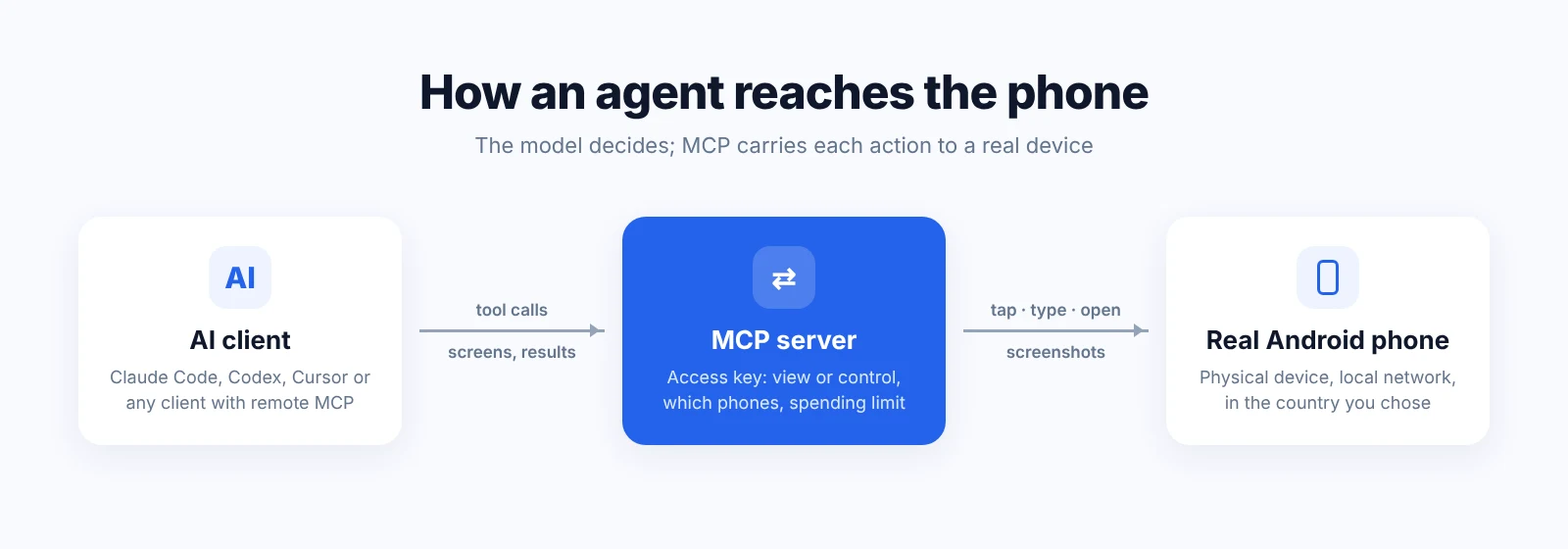
Diagram: AI client connects to an MCP server, which controls a real Android phone in a chosen country
The loop is straightforward. The agent looks at the screen, decides what to do next, carries out that action, looks at the screen again and repeats until the job is complete or it needs your intervention.
Three ways to give an agent a phone
- 1. Your own phone over ADB. There are a number of open-source MCP servers on GitHub that wrap Android Debug Bridge. They're free and very good for development, but the phone has to be right next to your PC, and it has your SIM, your location and your accounts.
- 2. An emulator or virtual cloud phone. Easy to get going and easy to scale, but it's virtual. A lot of apps behave differently on emulators: banking, payments, social media and some games check the device and may block, restrict or flag it. If your agent is going to test or operate any of those apps, it won't see what a real user would see.
- 3. A real phone in the cloud. A physical Android device hosted somewhere else, with its own network, that you rent and control remotely. The agent works on real hardware with stock firmware, typically with a local SIM in the country you pick. That's important for QA, localisation checks and anything that's location-dependent.
Step by step: connect an AI agent to a real Android phone
The steps below use DroidDesk real Android phones, a marketplace of actual Samsung phones in various countries with a built-in MCP server. The flow is similar for other providers.
Step 1. Rent a phone where you need it
Choose a device by country, city or network. For a quick test, an hourly or daily rental is enough. For recurring automation, a weekly or monthly rental keeps the same device and maintains the app state. MCP access is included in the rental. You just pay your AI provider separately, under their own terms.
Step 2. Create an access key
In the dashboard, create an MCP access key. It's separate from your account password, and it's where you decide what the agent is allowed to do:
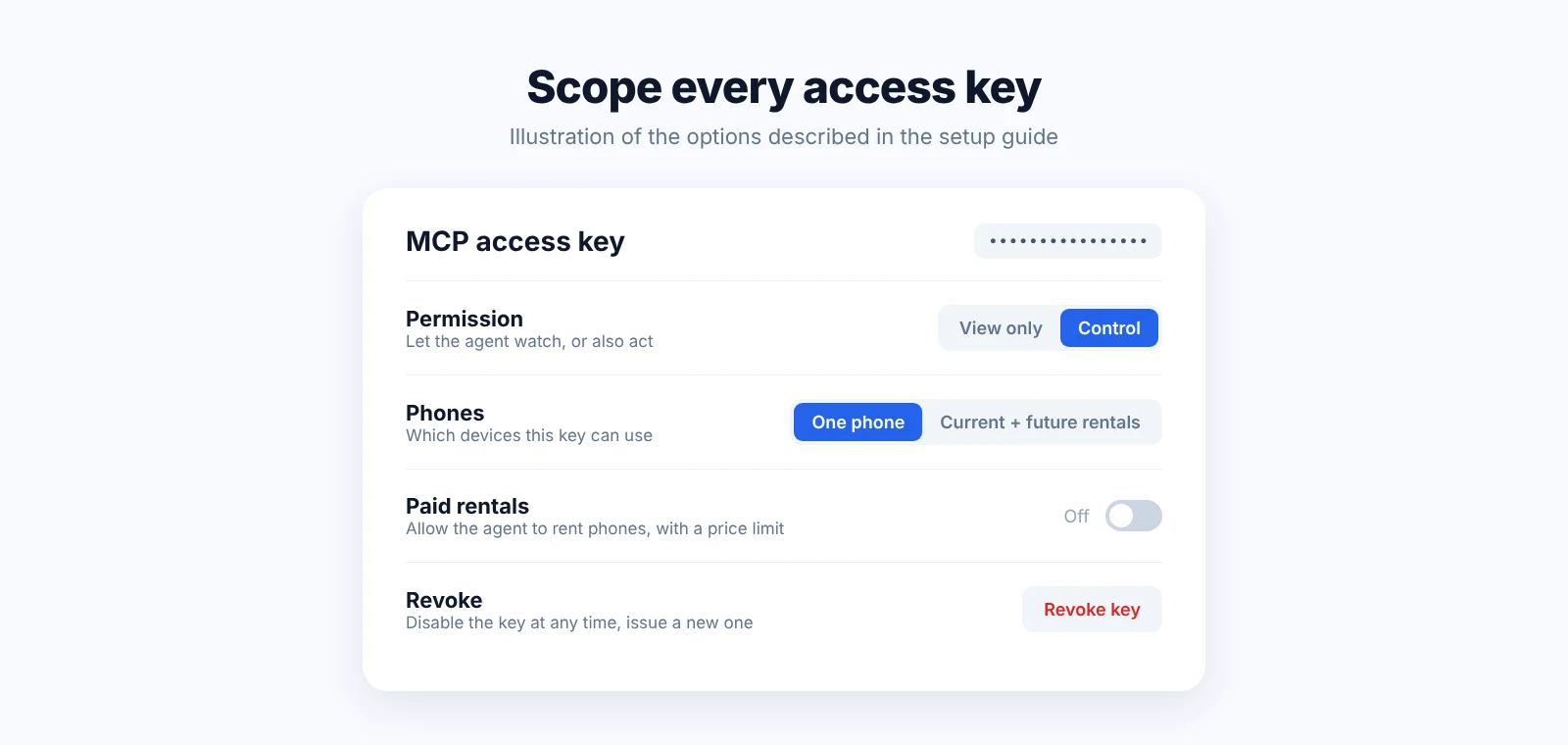
Access key settings: view only or control, one phone or all rentals, permission for paid rentals with a price limit
- • View only or control. Start with view-only if all you want is for the agent to read screens and report.
- • Scope. One phone, or your current and future rentals.
- • Paid actions. Letting the agent rent phones on its own requires a separate permission and a price limit.
You can revoke a key at any time and issue a new one should it leak.
Step 3. Connect your AI client
Add the remote MCP server to your client with the key. The official guide covers Codex, Claude Code and Cursor, and any client that supports remote MCP servers should work. Once connected, the agent has access to tools such as:
- • See the screen: read on-screen elements and take screenshots.
- • Open apps and websites: launch apps and open links.
- • Tap and type: press buttons and enter text.
- • Scroll and swipe: scroll through pages and feeds (vertical swipes for now).
- • Transfer files: send photos, videos, PDFs and text files up to 100 MiB.
- • Device info: list your phones and search available ones by country, city or network.
Step 4. Describe the task
Write the task the way you'd brief a colleague. Be specific about the objective, the app and what "done" looks like:
Open the Play Store on my Paris phone, search for our app, take screenshots of the listing and the first three reviews, and tell me the price and rating shown in France.
Install the APK I just sent, go through the sign-up process with a test email, and let me know if there's any screen where the text is cut off or not translated.
You can watch the phone's screen in the dashboard while the agent is working and step in at any point.
Step 5. Save what works as a template
Once a task is running well, save its action sequence as a template. The template then replays opening URLs and apps, taps, text input, swipes, key presses and waiting for the expected result, without calling the AI again. That makes subsequent runs faster, cheaper and more predictable.
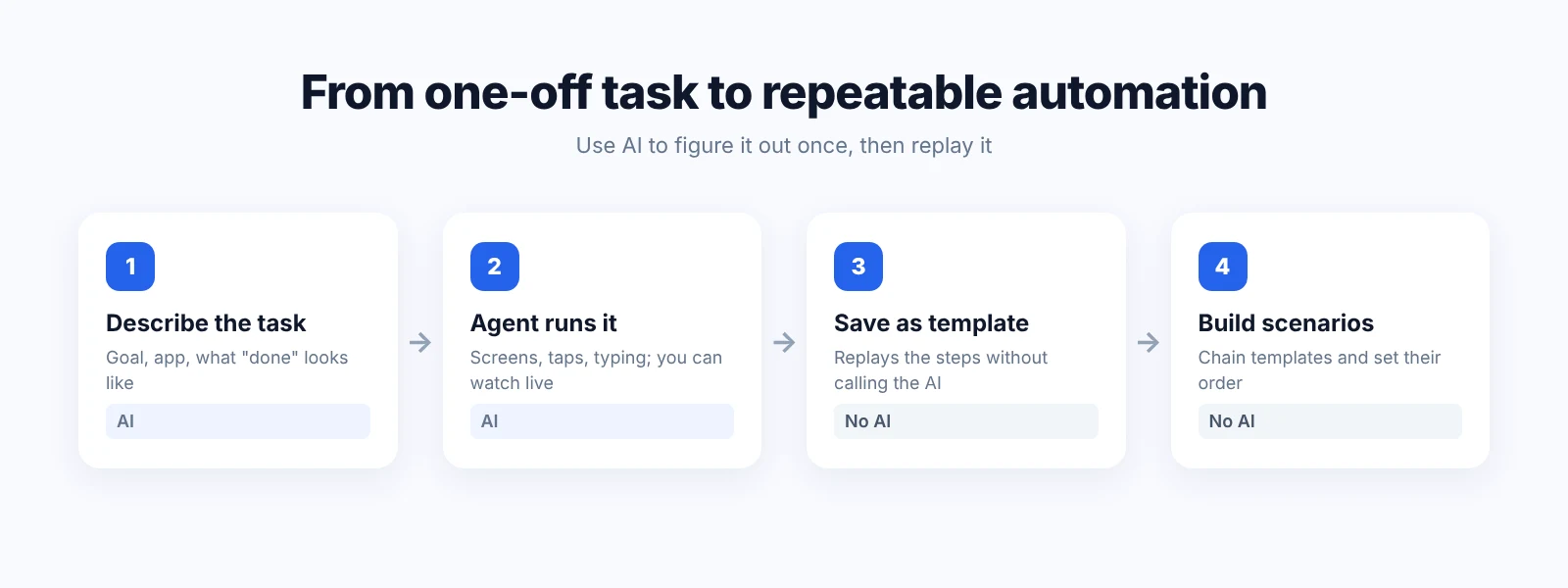
Workflow: describe a task, let the AI run it, save it as a template, combine templates into scenarios
Scenarios combine several templates in a defined order, e.g. "open app → log in → check inbox → screenshot." Not every task will replay exactly the same way, as you may still run into new screens or additional verification steps.
What teams use it for
- • Mobile QA. Smoke-test sign-up, onboarding and checkout on real devices after every build, and get screenshots of anything that breaks.
- • Localisation checks. See your app, store listing, prices and ads as users in another country see them.
- • Competitor monitoring. Take screenshots of competitors' in-app pricing, offers and onboarding in various markets.
- • Content operations. Upload pre-prepared media and publish routine posts to the accounts you manage, in line with each platform's rules.
- • Support reproduction. Reproduce a user's bug on the same phone model, in the same country, over a mobile network.
Safety and good practice
- • Least privilege. Give each key the narrowest possible scope: one phone, view-only where you can, and no paid actions unless you absolutely need them.
- • Keep a human in the loop for anything irreversible: payments, data deletion, publishing.
- • Know what's kept. After a rental ends, installed apps, their data and files on the phone are removed, so download results before it ends.
- • Obey the platform rules. Automation doesn't change an app's terms of service. Use it for testing, monitoring and your own accounts.
- • Expect friction. Verification screens and the odd pop-up still occur. A good agent stops and asks rather than guessing.
Limits to know
- • Results vary depending on the app, the state of the phone and the tools available.
- • Swipes are currently vertical only.
- • File transfers are limited to 100 MiB per file.
- • Your AI provider's usage and costs are separate from the phone rental.
FAQ
Which AI clients work with a phone MCP server?
Any client that supports remote MCP servers. Setup guides are available for Claude Code, Codex and Cursor.
Do I need to know how to code?
No. You connect the server once and then give tasks in plain language. Templates and scenarios run from the dashboard.
Why not just use an emulator?
For many tasks you can. But apps that check the device, location or network may behave differently on emulators, and a real phone shows you what real users get.
Can the agent work on several phones?
Yes. A key can cover one phone or all your current and future rentals, and the agent can list and search devices.
Is my data safe on a rented phone?
Use test accounts where possible, keep keys scoped, and remember that apps, data and files are removed when the rental ends.
Until next time, Be creative! - Pix'sTory
Recommended posts
-

4 AI Music Tools That Are Actually Worth Your Time in 2026
Read More › -
Breaking the Creative Bottleneck: How We Scaled Our Ad Output Without Bur...
Read More › -

Here's Exactly Why Copycat Content Keeps Business Content from Connecting
Read More › -

4 Ways to Use Pyramid Diagram in Your Business Presentation
Read More › -
Making the Correct Choice for SMTP Ports 25, 465, 587, and 2525
Read More › -

The Hidden Cost of Fake Invoices and AI-Generated Receipts in Modern Busi...
Read More ›