How to Use an AI Song Generator for Social Media Videos
A polished social graphic is a useful starting point for a short video. Add a little movement and the right soundtrack, and that same design can become a product teaser, an event announcement, or a brief tutorial.
The hard part is making those elements feel connected. A busy song can distract from your headline. An abrupt cut can make a carefully designed animation feel unfinished. Music should support the message, not compete with it.
This guide explains how to use an AI song generator to score social media videos, from a simple storyboard to a final export check. You will build the visuals and the audio separately, then bring them together in a video editor.
1. Start with one message and one action
Before you generate any music, decide what the video needs to communicate. Write a single sentence that describes the viewer's takeaway, followed by the action you want them to take.
For a fictional stationery launch, that might be: "A new notebook collection makes everyday planning more colorful." The action could be "Explore the collection." That is enough for one short video; shipping details and the full product range can wait.
Build a three-scene storyboard:
- • Hook: Show the product with a clear headline.
- • Detail: Highlight one useful feature or visual detail.
- • Action: End on the next step, with the brand visible.
As a starting point, sketch a 15-second version with three five-second sections. These are planning choices, not platform requirements. Adjust the length to fit the idea rather than stretching a weak message to fill a template.
2. Decide whether you need music, singing, or narration
Different audio choices solve different problems. Instrumental music can establish a mood while leaving room for on-screen text. A sung line can become the centerpiece of a musical concept. Narration is useful when a demonstration needs more explanation than captions alone can comfortably provide.
For a product graphic with several text overlays, start with an instrumental. Lyrics introduce another message for the viewer to process. If your video already contains speech, choose a sparse arrangement and lower the music beneath the voice.
Do not treat a song generator, a voice-conversion tool, and a text-to-speech service as interchangeable. Choose the audio format first, then select a tool that explicitly supports it.
3. Write a brief for your AI song generator
Useful prompts describe the soundtrack's job. Include mood, instrumentation, approximate pace, and whether you want vocals. Avoid asking for a recognizable artist's voice or a copy of an existing song.
For the stationery example, try:
Create a bright instrumental with soft electronic percussion, warm keyboard chords, and a light, playful mood. Keep the arrangement uncluttered so it can sit behind product text. Avoid vocals and dramatic changes. Give it a clear rhythmic opening.
An AI song generator can turn a prompt like that into a complete instrumental or a full song, often with options for style, tempo, and stem downloads. That last point is useful in an edit: you can keep the instrumental under text, or isolate a passage that fits a 15-second cut.
Generate a small set of options and listen before choosing. Judge the opening, the density of the arrangement, and whether there is a usable ending. A complete generated song does not need to become a complete social video: select a suitable passage and trim it in your editor.
If the result feels too busy, simplify the prompt. Change one variable at a time so you can tell which adjustment helped.
4. Animate the visual hierarchy, not every object
Build your visual sequence around what the viewer should notice first, second, and third. Usually that means the main image, the supporting message, and the call to action.
PixTeller's animation maker lets you animate properties such as position, size, rotation, and opacity, then download the result as an MP4 or GIF. For a video you intend to combine with audio, choose MP4 rather than GIF, which does not carry an audio track.
Keep the movement purposeful. Let the product enter first, reveal the headline next, and bring in the call to action after the viewer has time to understand the offer. Avoid spinning text or continuous motion behind small lettering.
Use your brand colors and consistent typography throughout. If you are starting from a finished graphic, PixTeller's guide to turning static designs into social media videos provides related approaches for adapting existing assets.
5. Combine the animation and music in a video editor
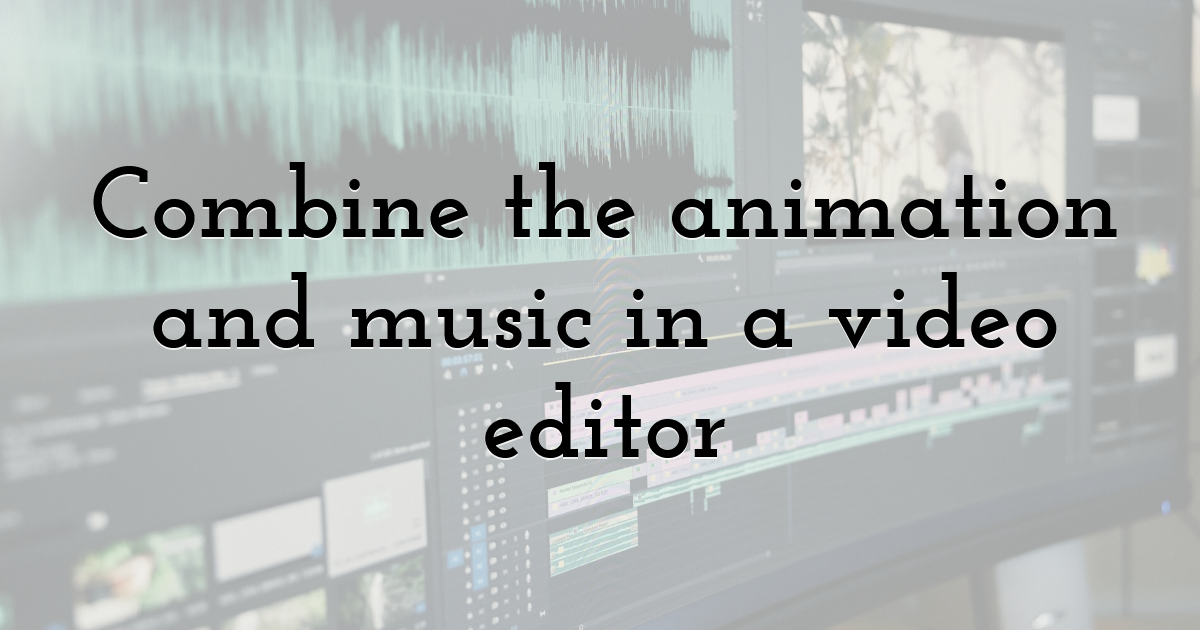
Import the rendered animation and your selected audio into an editor that supports separate video and audio tracks. This workflow does not depend on a direct integration between your design and music tools.
Place the strongest musical opening near the first visual reveal. Align a few important transitions with clear beats, but do not cut on every beat. The viewer still needs enough time to read.
For the three-scene example, a practical arrangement is:
| Scene | Visual | Audio decision |
|---|---|---|
| Opening | Product and headline appear | Begin on a clean rhythmic entrance |
| Detail | Feature or close-up takes focus | Keep the music steady beneath the text |
| Closing | Brand and call to action remain visible | End on a suitable phrase or short fade |
Trim the track to match the visual sequence. Listen carefully at edit points for clicks or awkward jumps. If you repeat a passage, check that the rhythm continues naturally across the join.
Preview through headphones and a phone speaker. Where speech is present, every word should remain understandable without straining.
6. Check rights, consent, and platform requirements
AI generation does not remove the need to check permissions. Review the tool's current terms and the rights attached to any lyrics, recordings, samples, or voice models involved. Do not assume that access to a voice model grants permission to imply a person's endorsement.
For client work, keep a record of the selected track, the applicable terms, and any permissions you obtained. Use your own material or properly authorized inputs, and avoid recognizable voice imitation without appropriate consent.
Check the destination platform's disclosure rules as well. YouTube's guidance on AI-generated content covers AI-generated music and realistic synthetic content. Review the current upload requirements rather than assuming a label is unnecessary because the visuals are animated.
7. Review the video with sound off and sound on
Watch the finished video silently. Does the headline explain the idea? Is the call to action readable? If narration conveys essential information, add accurate captions and check them manually.
Then watch with audio. Check that the music supports the mood, transitions feel intentional, and the ending does not cut off unexpectedly. Preview inside the destination app to catch interface overlays covering important text.
When testing another version, change one major element, such as the opening image or soundtrack. Compare the results against the video's actual goal, whether that is a completed view, a product-page visit, or an inquiry.
The strongest workflow starts with a clear message. Design for understanding, choose music with a specific role, and finish with careful editing. An AI song generator can help create the soundtrack; your decisions make it work with the picture.
Until next time, Be creative! - Pix'sTory
Recommended posts
-

How to Turn Supplier Photos into AI Photo to Video Ads for Dropshipping P...
Read More › -

The Top 8 Free Voice Changer Apps for Online Chats, Streaming, and Gaming
Read More › -

10 Best AI Tattoos Generators
Read More › -
The Secret of Killer Marketing: Email and Instagram Give Benefits When Wo...
Read More › -
Prototype vs Production: The Gap Nobody Mentions in AI Development Demos
Read More › -

Data-Driven Roadmaps: Prioritizing Investments in Veracode Alternatives
Read More ›