Why Does My SD Card Say It Needs to Be Formatted?
If your SD card suddenly asks to be formatted when you connect it to your computer or insert it into your camera, you may worry that your photos and videos are gone. The message usually means the device cannot read the card’s file system—the information it uses to locate your files. It does not, by itself, mean those files have been erased.
Before you click Format, stop and consider what is on the card. If it holds photos or footage you need, cancel the prompt and stop using it for now. The next step depends on what caused the error, and formatting too soon could make recovery harder.
What Does “SD Card Needs to Be Formatted” Mean?
Your SD card stores both your files and the information needed to organize them. That organization is called a file system, commonly FAT32 or exFAT on SD cards. When Windows cannot recognize or read it, you may see “You need to format the disk in drive X: before you can use it.” Windows offers to create a new file system so it can use the card again.
So, what does “card not formatted” mean on camera? It means the camera cannot read or use the card in its current state. The wording can be confusing if you have already taken hundreds of photos with that card. It does not necessarily mean you forgot to format it. The existing format may have become unreadable or may not be compatible with the camera.
The message alone cannot tell you whether the problem is with the card, its format, or the device reading it. It also cannot tell you how many files are recoverable. Those questions require a few checks before you decide what to do next.
Why Does My SD Card Say It Needs to Be Formatted?
The timing of the error can offer a useful clue. Did it appear after a file transfer stopped halfway through? After you switched cameras? Or only when you used a different card reader? Several problems can produce the same formatting prompt.
| Possible cause | What you may notice | Why the message appears |
|---|---|---|
| File system corruption | The error starts after interrupted recording, a power failure, or removing the card during a write operation. | Damage to the information that organizes files can prevent the device from reading the card normally. |
| An incompatible format or card standard | The card works on your computer but your camera rejects it, particularly after formatting it on another device. | The camera may not support the current file system, card standard, or capacity. |
| A faulty card reader, adapter, or connection | The card works with one reader or computer but produces errors with another. | An unreliable connection can prevent the device from reading the card correctly. |
| Flash memory wear or physical damage | Errors return, transfers fail, or the card repeatedly disconnects. | Failing hardware can make parts of the card unreadable, including information needed to access its files. |
An interrupted write is a possible trigger, not proof of permanent damage. For example, a camera losing power while saving a photo may leave file system information incomplete. The next device that reads the card may then ask to format it, even though some image data remains.
Compatibility deserves a closer look when the error appears after moving the card between devices. According to the SD Association’s compatibility guidance, a device that supports SDHC does not automatically support SDXC. Check your camera’s manual for supported cards rather than assuming any card that fits the slot will work.
These symptoms help narrow down the cause, but they are not a diagnosis.
What to Do Before You Try to Fix the Card
If the card contains photos or videos you need, protect those files before attempting repairs. A few precautions now can keep your next steps from making recovery harder.
- • Cancel the formatting prompt. On a camera, exit the message and turn the camera off before removing the card.
- • Stop saving anything to the card. Do not take test photos or copy files onto it. New data could overwrite files you might otherwise recover.
- • Check for existing copies. Look through previous imports on your computer, external backups, and cloud storage. Open the copies to confirm that the files you need are there.
- • Hold off on repair tools. Commands such as CHKDSK with repair options change the file system. Save your files before attempting those changes.
- • Check for physical damage. If the card is cracked, bent, or becomes unusually hot, stop using it. For valuable files, contact a professional data recovery service. Repeated disconnections or read failures are also reasons to stop repeated DIY attempts.
Recovering your files and making the card usable again are separate tasks. Getting your photos back does not establish that the card is reliable enough for another shoot.
Why Does My Camera Say “Card Not Formatted” When the Card Works on My Computer?
If you can open the card on your computer but your camera rejects it, copy your photos and videos to the computer first. You may not need recovery software at all.
The difference can come down to compatibility. Your computer may recognize a file system that your camera does not support. For example, formatting a card as NTFS in Windows can leave it readable on your PC but unusable in a camera that expects FAT32 or exFAT.
Check the camera’s manual for supported card types and capacities. Changing the card’s file system does not change its SDHC or SDXC standard.
Once your files are safely copied, insert the compatible card into the camera and use its Format option. The menu location varies by model, so follow the instructions for your camera.
If the message returns, try another card that meets the camera’s requirements. When only the original card fails, that card is the likely problem. If several compatible cards produce the same error, the camera’s slot or hardware may need attention. Contact the manufacturer’s support team rather than repeatedly formatting cards.
How to Fix an SD Card That Says It Needs to Be Formatted
Start by checking whether the problem follows the card or only occurs with one connection. If the card remains unreadable, recover the files you need before moving on to repairs or formatting.
1. Check the Card Reader and Connection
A faulty reader or adapter can make a working card appear unreadable. Connect the card directly to another USB port on your computer, without a USB hub. If the formatting prompt returns, cancel it and try another compatible card reader. For a microSD card, you can also try a different microSD-to-SD adapter.
If you have access to another computer, check whether it can read the card. If your files appear, copy them to that computer immediately and open a few photos or videos to check the copies.
If the card still will not open, check how Windows detects it:
- 1. Right-click Start and select Disk Management.
- 2. Find the card in the lower panel by its capacity. Be careful not to confuse it with your computer’s internal drive.
- 3. Check the displayed capacity and file system. If Windows offers to initialize or format the device, cancel.
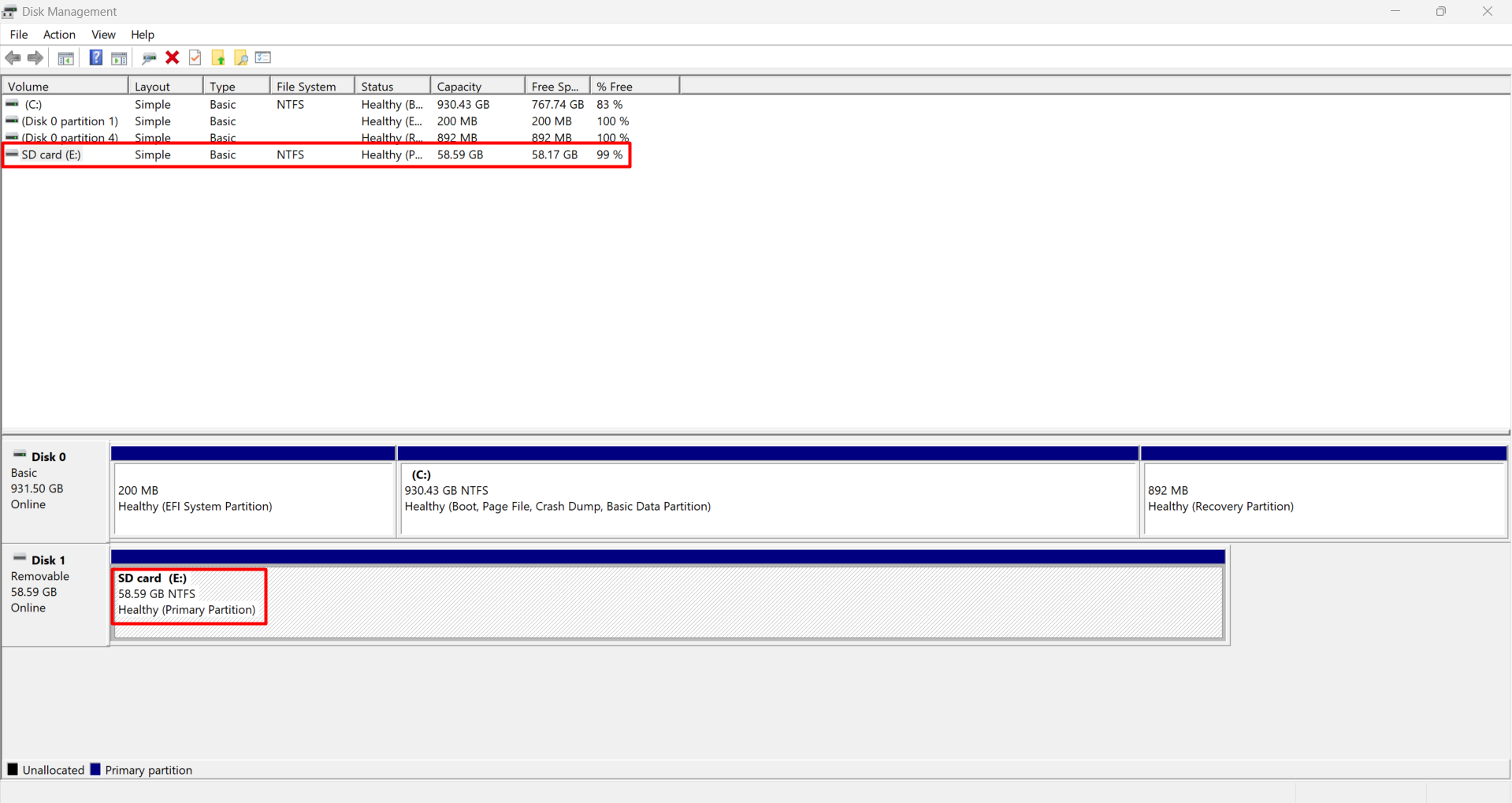
Disk Management shows the drive’s capacity and partition details. The screenshots use a USB flash drive to demonstrate the Windows and recovery software steps.
A RAW label means Windows does not recognize a usable file system on that volume; it does not mean the card is empty. If the expected capacity appears, recovery software may be able to read it. However, the correct capacity alone does not prove the card is healthy.
If the card shows No Media, reports 0 bytes, or keeps disconnecting even with another reader, stop here. These symptoms call for further diagnosis, especially if the files are irreplaceable.
2. Recover Your Photos and Videos Before Repairs
If the card is detected with its expected capacity but you cannot open it, recovery software may still find your files. Disk Drill is one option: it can create a byte-to-byte backup and scan that image for recoverable photos and videos.
A byte-to-byte backup copies the card’s readable contents into an image file, including areas that may contain lost data. You can then scan the image instead of repeatedly scanning the original card. Creating the image still requires reading the card, so if it repeatedly disconnects or becomes unusually hot, stop and consider professional recovery.
Create the image first:
- 1. Install Disk Drill on your computer.
- 2. Connect the card and cancel any formatting prompt.
- 3. Open Byte-to-byte Backup, select the card, and start creating a backup.
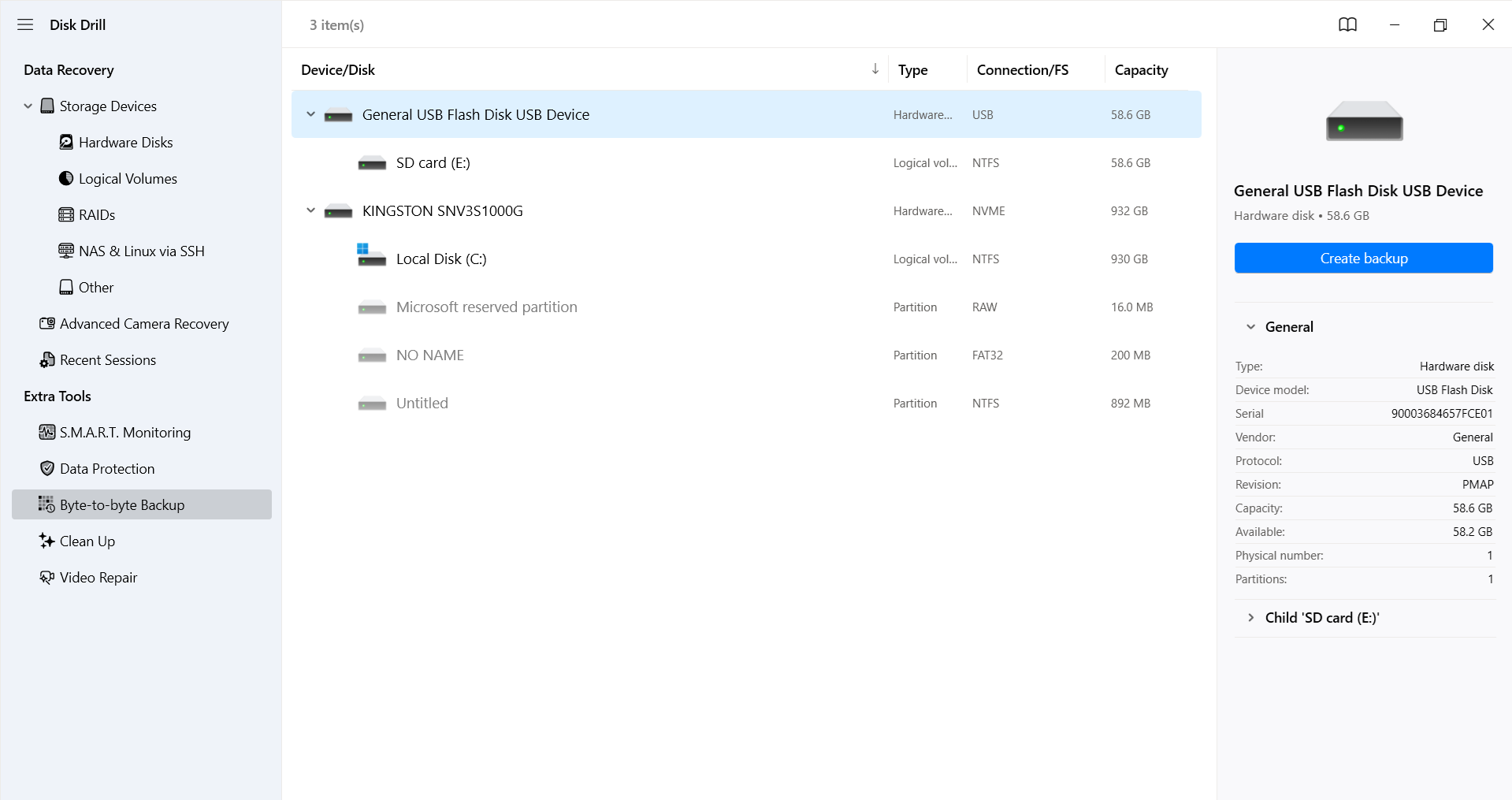 Select the drive in Disk Drill’s Byte-to-byte Backup section.
- 4. Save the image to another drive with enough free space for the card’s full capacity, then wait until the backup finishes before attaching it for scanning.
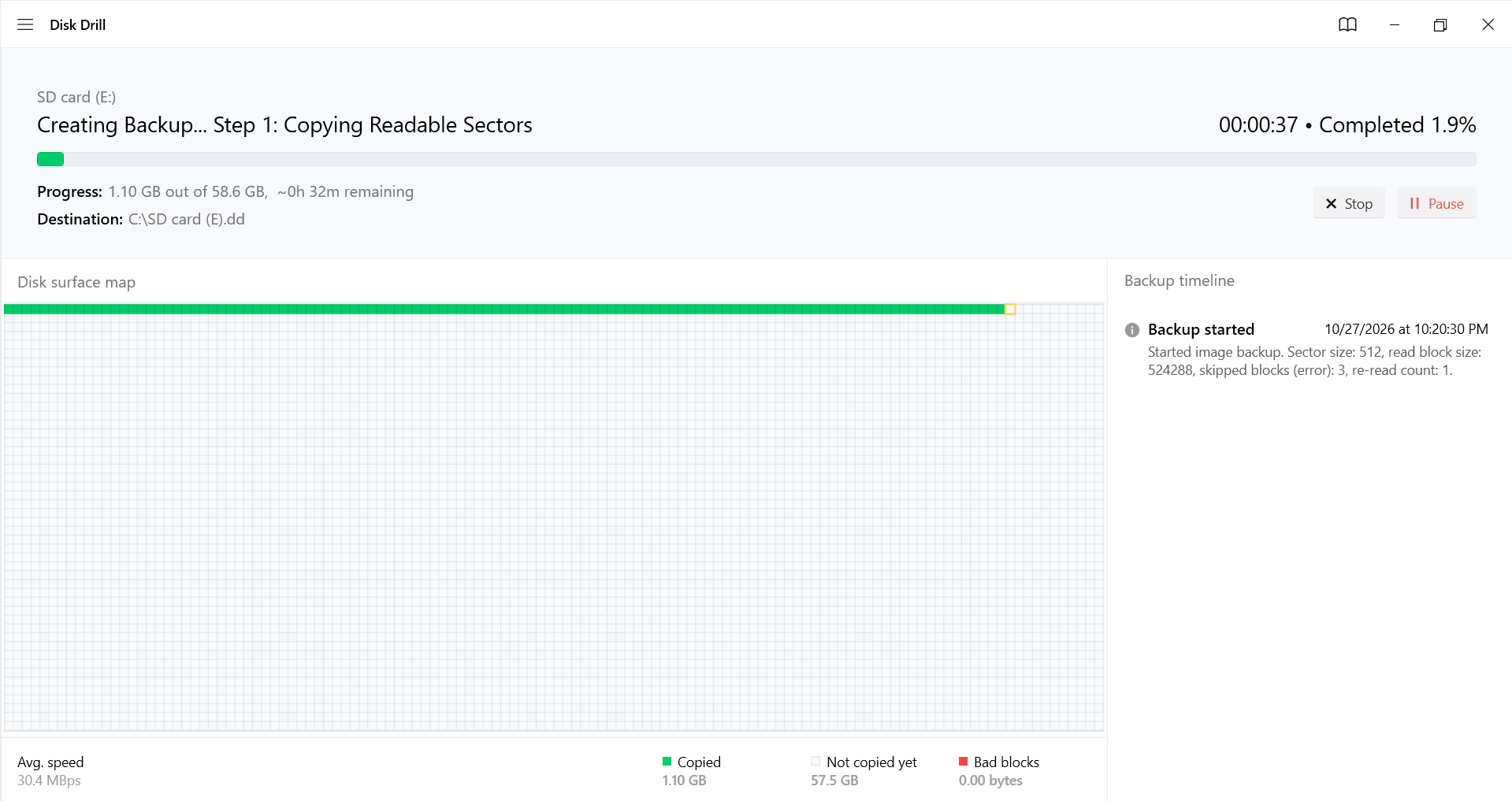 Create an image before attempting repairs.
Then recover files from the image:
- 1. Return to Storage Devices and click Attach disk image… at the bottom-left of the drive list. Find your saved .dd file and open it.
- 2. The attached image will appear in the drive list, usually near the bottom, with the type Mounted Image. Select it and click Search for lost data. Choose Universal Scan for photos, documents, and a general search for lost files. If you need videos recorded directly by a camera, drone, or action camera, choose Advanced Camera Recovery, which is designed to reconstruct fragmented video files.
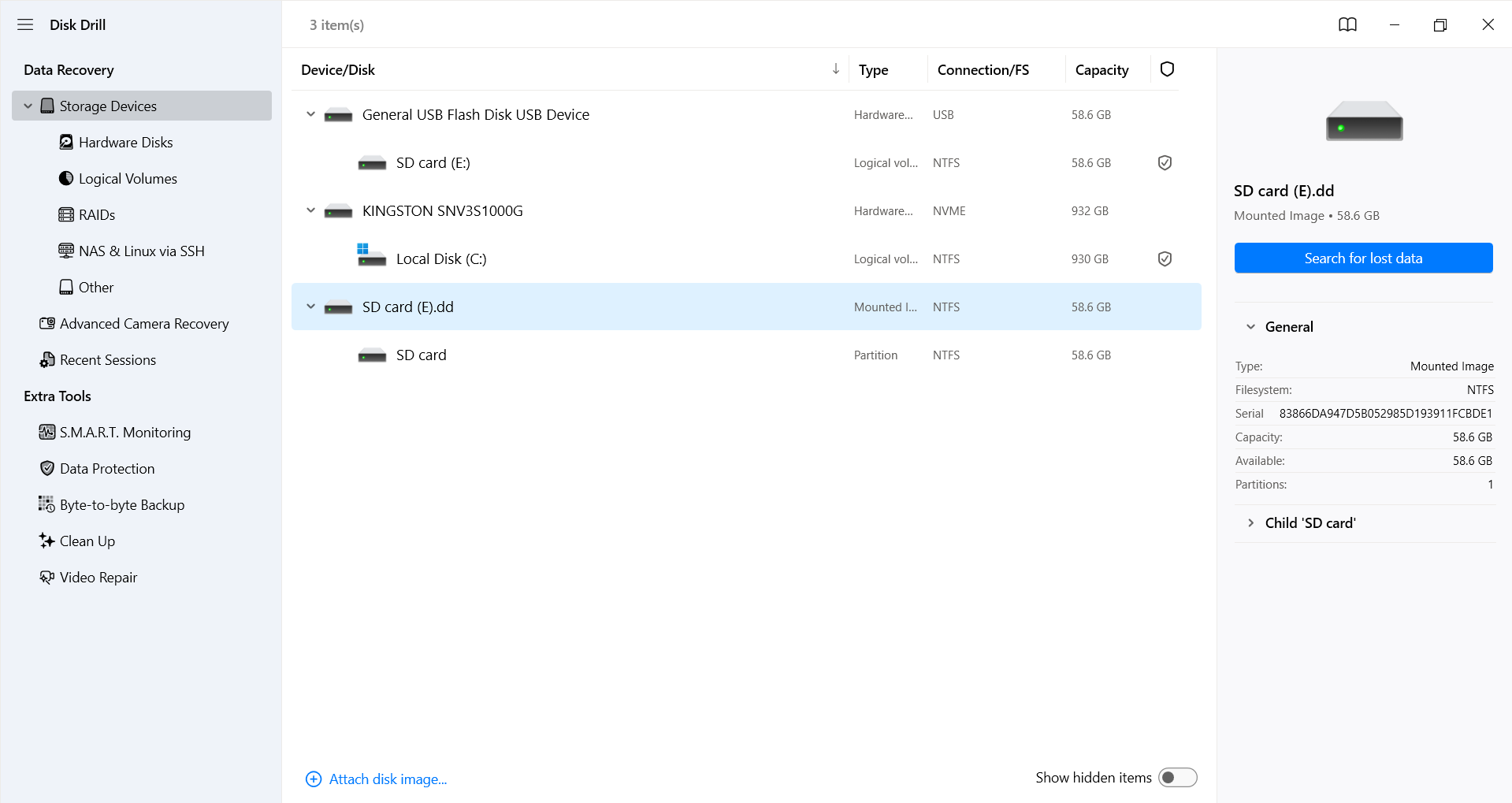 Select the attached disk image and click Search for lost data to scan it.
- 3. Review the results and use the picture or video filters to narrow the list.
- 4. Preview the files you need. A filename alone does not confirm that a file’s contents are intact.
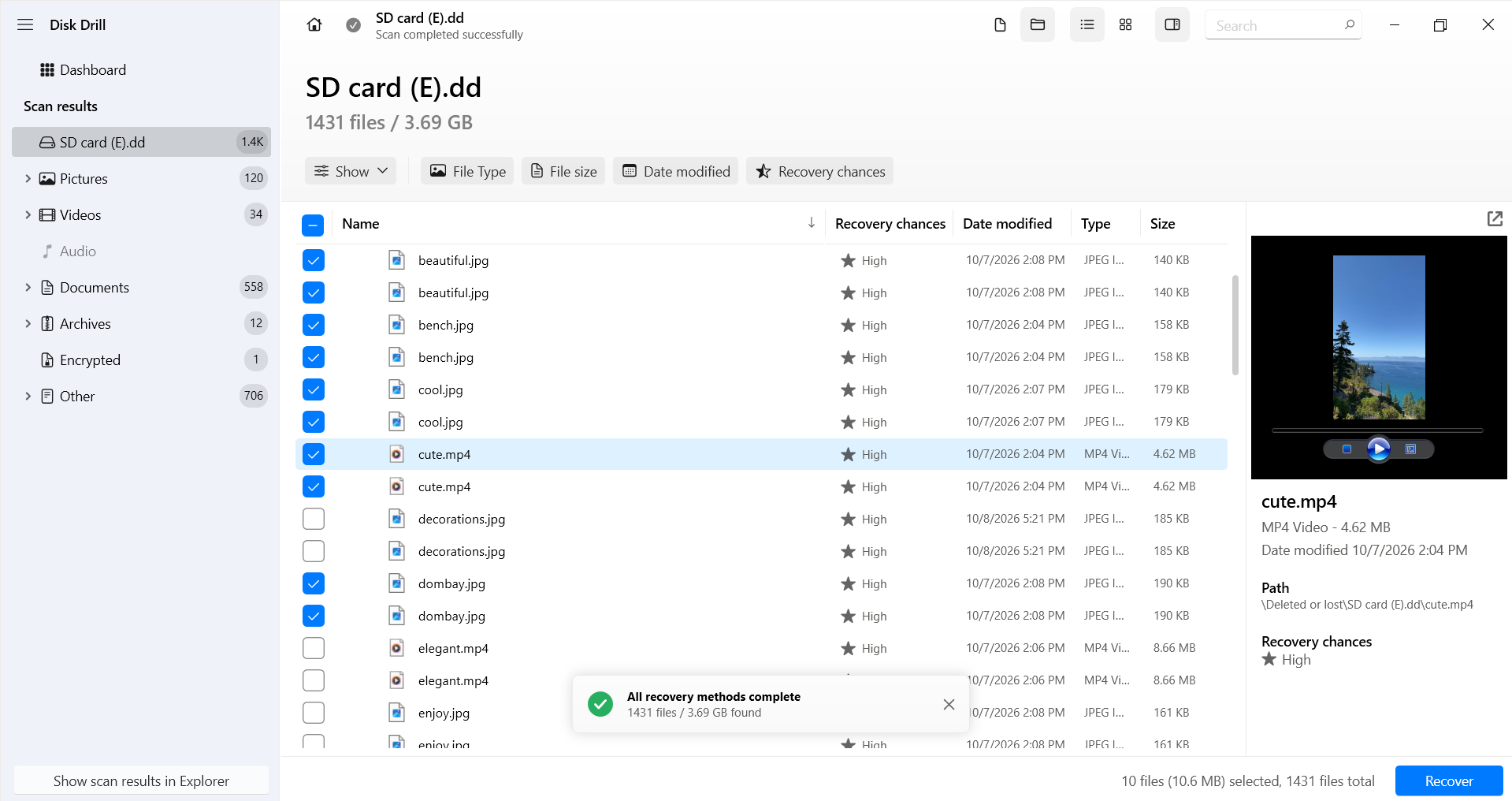 Preview found files before selecting them for recovery.
- 5. Select your files, click Recover, and choose a folder on another drive.
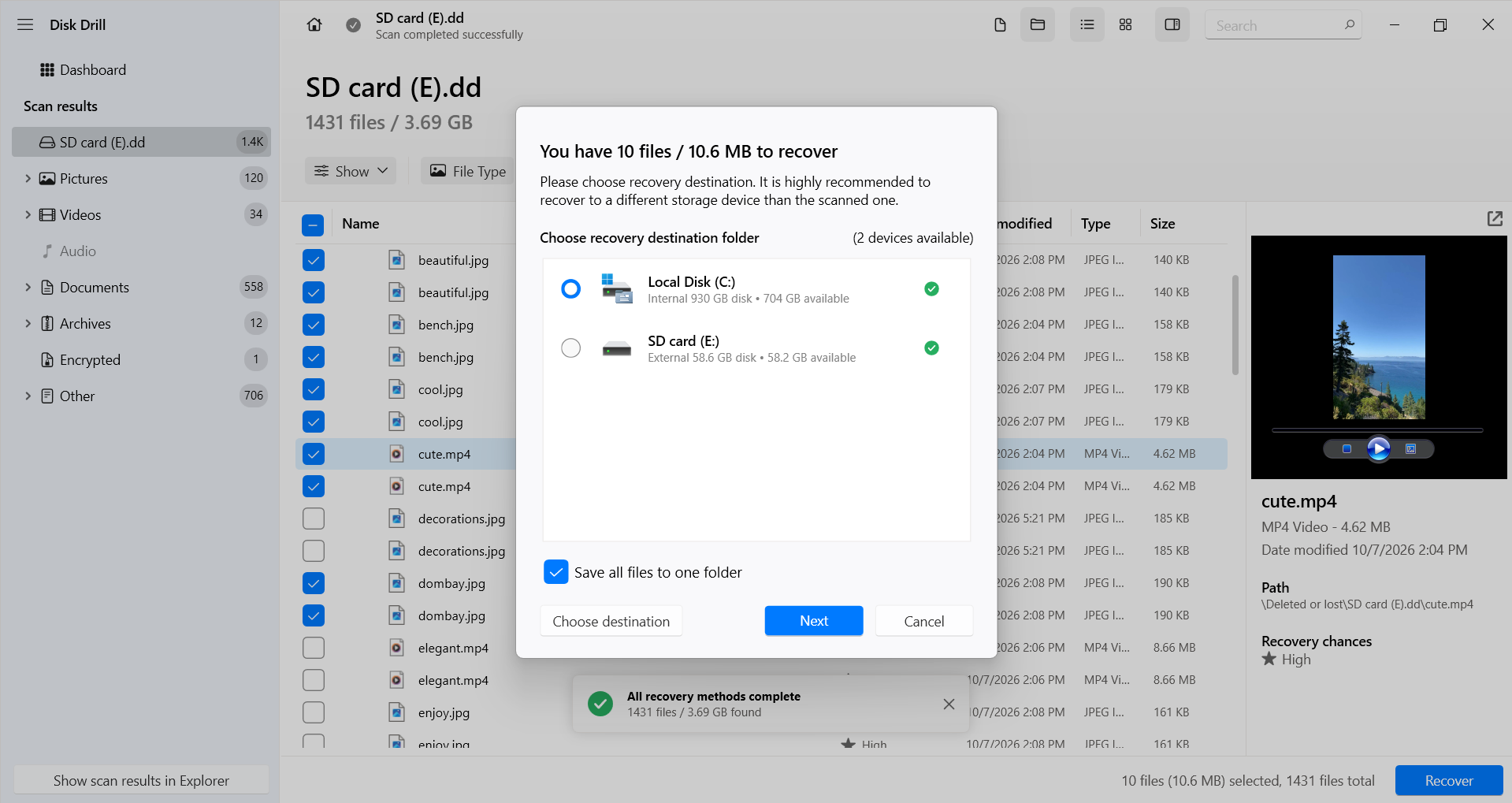 Save recovered files to your computer or another drive, rather than the original card.
Disk Drill lets you scan and preview files for free, but saving recovered files is subject to the free version’s limits. Check the current allowance before committing to a paid license.
Once recovery finishes, open the saved photos and play the videos. Confirm that the important files work before proceeding.
3. Try File System Repair After Recovery
Once your important files are saved and checked, you can try repairing the card’s file system. On Windows, CHKDSK may help with logical errors, but it is not suitable for every formatting prompt. If Disk Management shows the card as RAW, skip this method: CHKDSK cannot repair a file system that Windows does not recognize.
If Windows identifies the file system and the card stays connected reliably, follow these steps:
- 1. Check the card’s drive letter in Disk Management or File Explorer.
- 2. Search for Command Prompt in Start and choose Run as administrator.
- 3. Enter chkdsk E: /f, replacing E: with your card’s actual drive letter, and press Enter.
- 4. Let the check finish, then try opening the card in File Explorer.
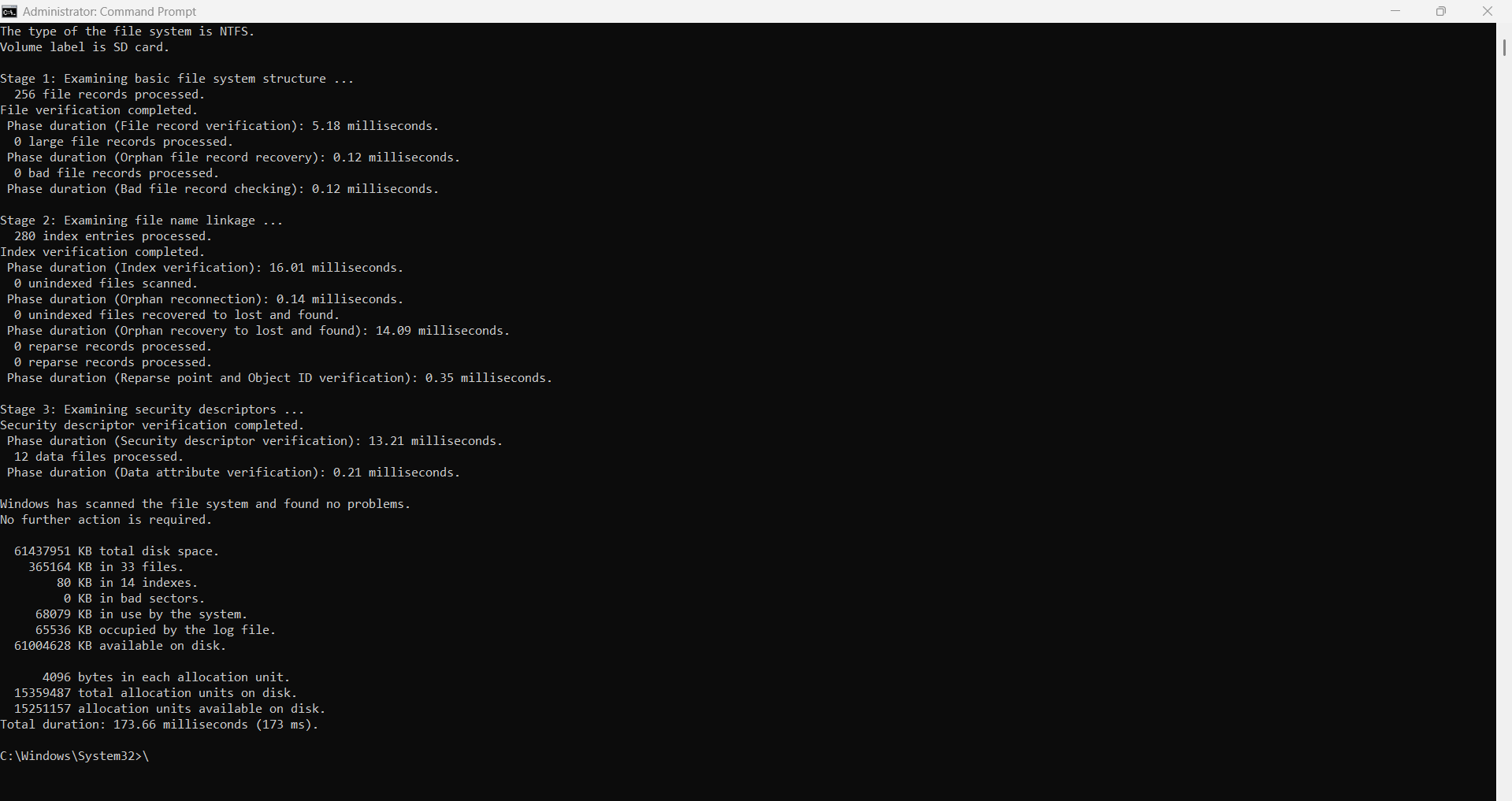
CHKDSK completed the check and found no file system errors on the demonstration USB drive.
The /f option tells Windows to fix file system errors. As Microsoft’s CHKDSK documentation explains, repairs can modify the file allocation table and sometimes cause data loss. That is why this step comes after recovery.
If you want to explore how to fix sd card without formatting, the available options depend on whether the problem involves the connection, file system, or partition information. Avoid running multiple repair tools at random if CHKDSK fails. Keep your recovered files safe and move on to formatting only when you no longer need to recover anything else from the card.
4. Format the Card Once Your Files Are Safe
If the formatting prompt persists after you have saved your files, formatting can rebuild the file system and make the card usable again. It will remove access to the files currently on the card, so check your recovered copies before proceeding.
If you use the card in a camera, format it through the camera’s menu after saving your files. If you need to format it on your PC instead, follow these Windows steps:
- 1. Connect the card and open File Explorer > This PC.
- 2. Right-click the card and select Format. Double-check the drive letter and capacity.
- 3. Choose a file system supported by your intended device. SDHC cards normally use FAT32, while SDXC cards use exFAT. Leave Allocation unit size at its default and keep Quick Format selected.
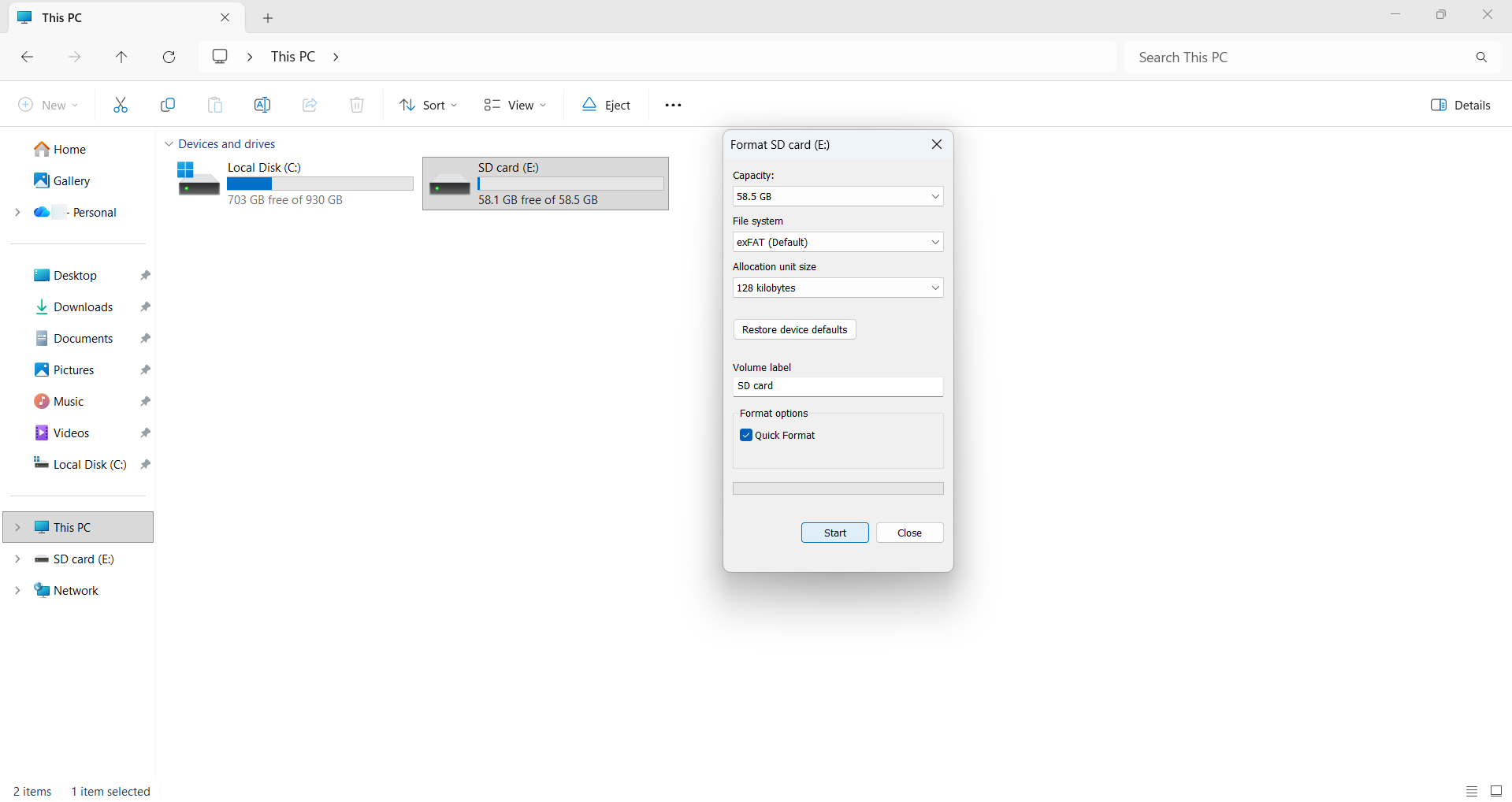 Check the selected drive and file system before starting the format. A USB flash drive is shown for demonstration.
- 4. Click Start, confirm the warning, and wait for Windows to finish.
- 5. Safely eject the card and reconnect it to check whether the formatting prompt returns.
Formatting cannot repair worn-out flash memory or physical damage. If the process fails or the same error returns, try a known-good compatible reader to rule out the connection. If the problem follows the card, replace it rather than trusting it with another important shoot.
What If You Already Formatted the SD Card?
If you clicked Format before realizing your photos were still on the card, stop using it now. Do not take more pictures or copy anything onto it. Recovery may still be possible, but it depends on how the device formatted the card and whether new data has overwritten the files.
A quick format often replaces file system information without overwriting all the previous file contents. An overwrite format erases the data area, leaving recovery software with nothing to retrieve. Camera behavior varies, so a format finishing in a few seconds does not guarantee that your files remain recoverable.
You’ll find plenty of formatted SD card recovery advice online, but without a backup, recovery software is usually your main option. You can follow the image creation and recovery steps above, then preview whatever the scan finds. Save recovered files elsewhere and check them before using the card again.
How to Avoid the Same Problem Again
Once you have recovered your files and dealt with the error, a few habits can reduce the chance of another interrupted shoot:
- • Wait for the camera to finish writing. Do not remove the card or battery while the card activity light is flashing. Replace a low battery before starting a long recording.
- • Eject the card properly from your computer. Finish file transfers and use the eject option before disconnecting the reader.
- • Use a compatible, reliable reader. Replace adapters or readers that lose connection during transfers.
- • Back up your footage after each shoot. Copy photos and videos to your computer, then keep a second copy on an external drive or in cloud storage such as Google Drive, OneDrive, or Dropbox. Check that the files open before clearing the card.
- • Take recurring errors seriously. If the same card keeps asking to be formatted across compatible devices, replace it. Repeated formatting is not a lasting solution to failing hardware.
Final Thoughts:
An SD card asking to be formatted does not automatically mean your photos are gone. The cause may be file system damage, an incompatible format, or a faulty connection. Check the reader first, then copy or recover the files you need before attempting repairs or formatting.
If the error follows the card across compatible devices or reliable readers, replace it rather than risk another shoot.
Until next time, Be creative! - Pix'sTory
Recommended posts
-

How to Fix Personal Emails Going to Spam from a Custom Domain?
Read More › -

AI tools vs Custom software development : What's Best for a Startup?
Read More › -

Best Instagram chatbot platforms in 2026: 5 tools compared
Read More › -
10 Best Wireframing Tools in 2026: Free & Paid Options Compared
Read More › -

What Is the Fastest Workflow from Idea to Finished Presentation?
Read More › -

Software Engineering Tools That Affect Team Productivity
Read More ›