Top 10 Tools for Creating Social Media Content in 2026
A decent content setup in 2026 is usually a mix of tools, not one giant app that does everything equally well. A creator may need vertical video edits, cleaner product photos, carousels, screen recordings, captions, and correctly sized files for Instagram, TikTok, YouTube Shorts, LinkedIn, or Pinterest.
That is why the best social media content creation tools 2026 are split across video, photo editing, layout design, copywriting, and planning. The right stack depends on the posts that repeat every week.
1. Canva
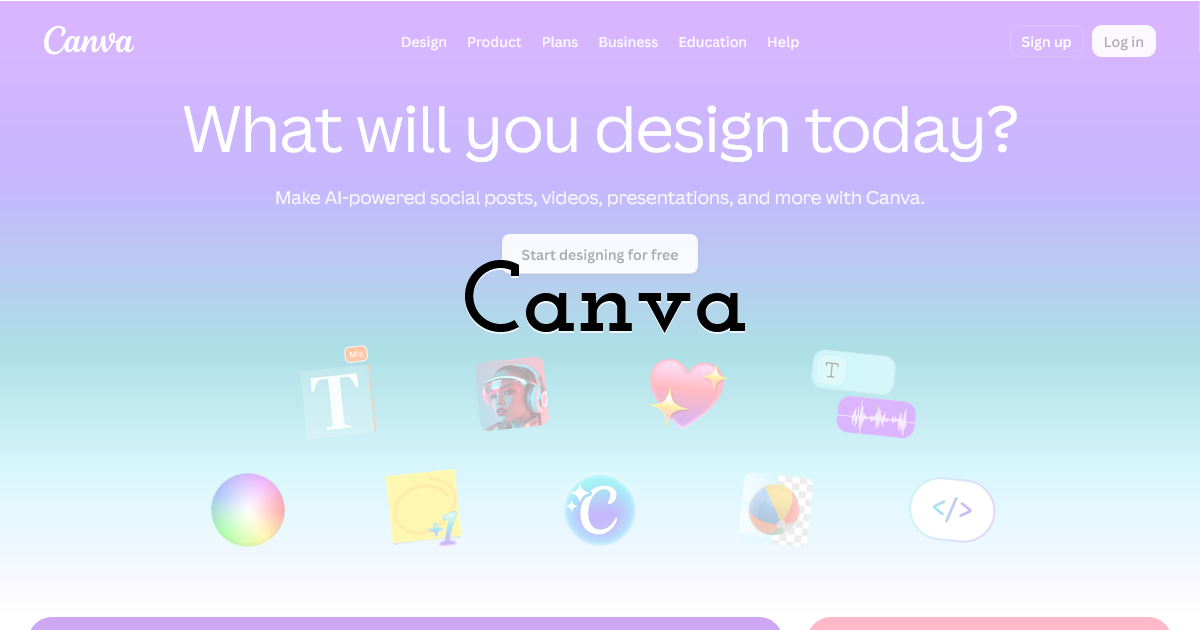
Canva is still the default social media post maker for many teams and solo creators. It handles carousels, Stories, thumbnails, short promo videos, pins, banners, and quick branded layouts.
Its biggest strength is the speed of everyday design. A marketer can take a product photo, place it into a carousel cover, resize the layout for another platform, and prepare several post versions before sending them for review. Among graphic design tools, Canva also has one of the lowest barriers for non-designers.
The trap is the template look. A post made from an unchanged Canva template often feels familiar. Change the crop, spacing, type size, and background treatment. Save a small set of your own layouts instead of pulling a new template for every post.
2. CapCut
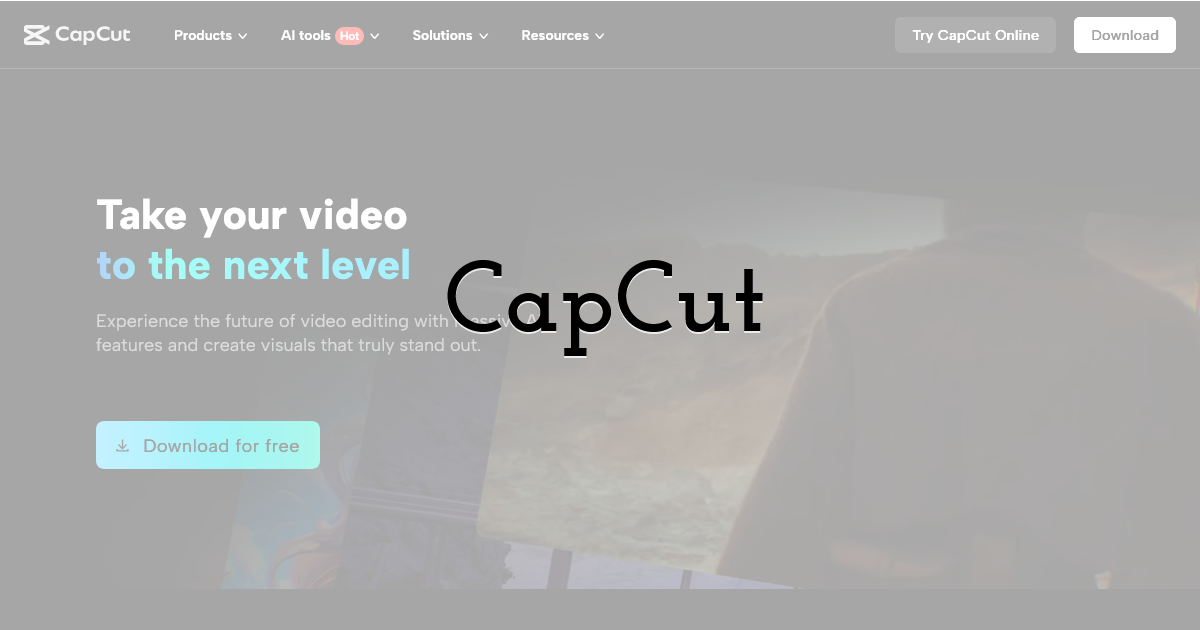
CapCut is a common pick for TikTok, Reels, Shorts, and creator-style edits. It handles short cuts, caption generation, speed changes, background removal, filters, audio timing, and mobile exports.
It makes sense for videos that need to move quickly from phone footage to a finished post. A café can turn a 20-second drink prep clip into a Reel. A creator can cut a talking-head video, add captions, and test two different openings. A small brand can use it for low-budget product demos.
Templates save time, but they age fast. If a template is everywhere on TikTok this week, it may make a brand post look late by next week. Use the template as a timing reference, then change the text style, pace, color, and ending.
3. Photoshop
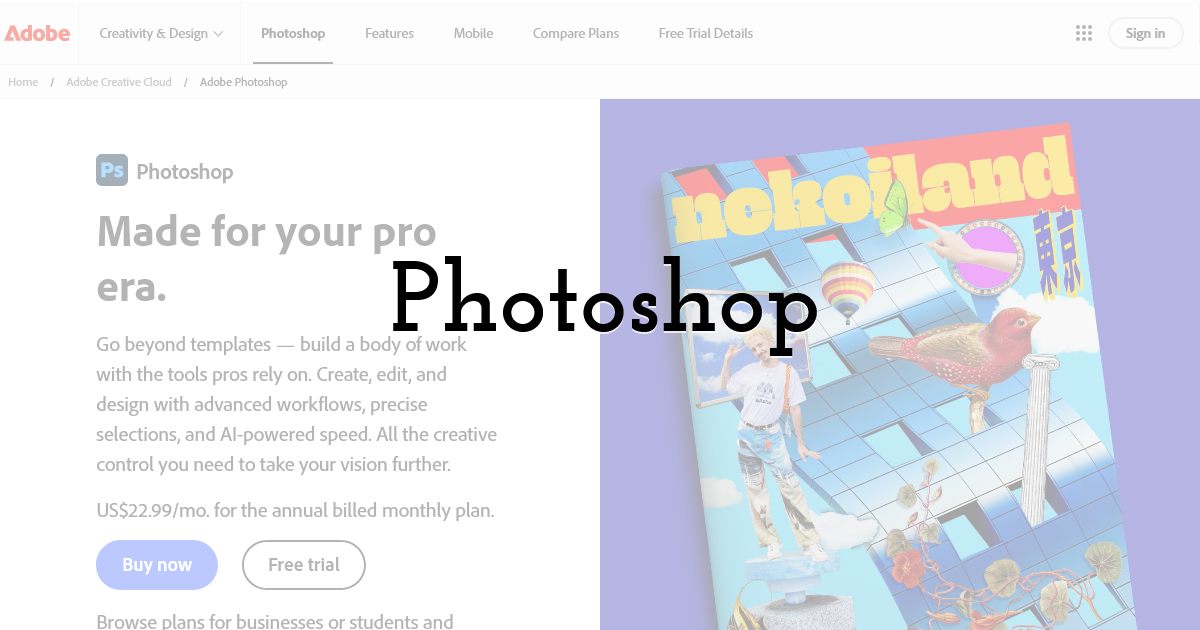
Photoshop earns its place when the image itself matters. Product dust, uneven lighting, messy backgrounds, skin retouching, rough cutouts, thumbnail composites, and ad visuals are all stronger candidates for Photoshop than for a lightweight editor.
For social media, it is most useful on images that will appear in more than one format. A product visual may become a feed post, paid ad, website banner, and email image. Spending extra time on that source image makes sense.
Daily posts do not all need Photoshop. If every minor post turns into a detailed retouching job, the content calendar slows down. Keep it for images where detail changes the result.
4. Lightroom
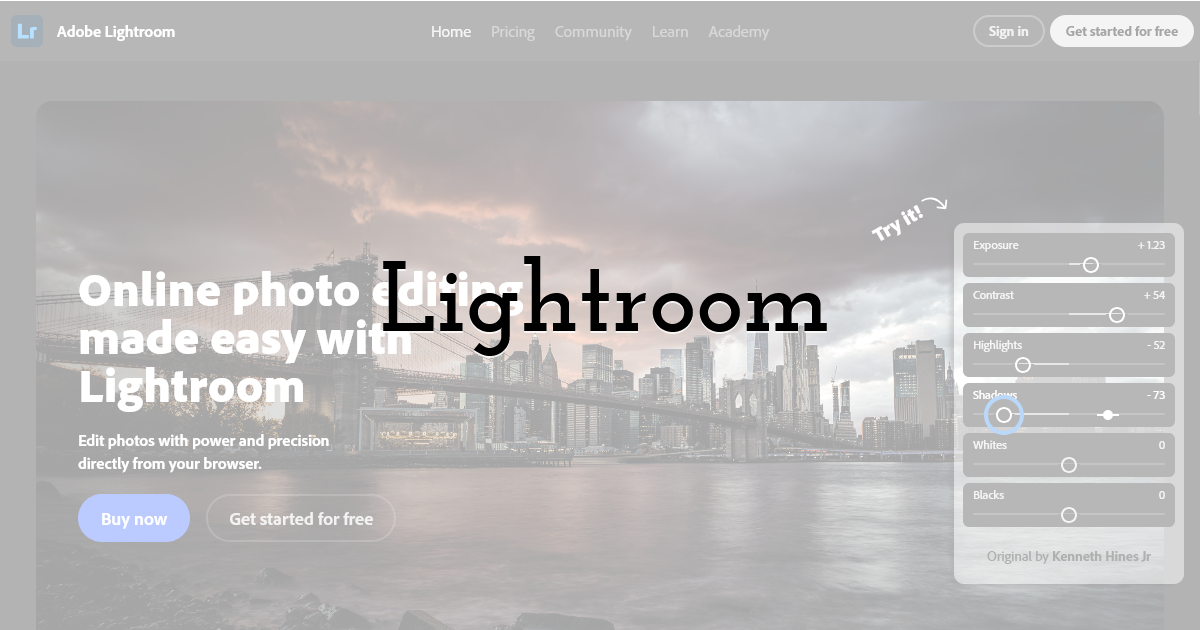
Photo editing tools can get unnecessarily heavy for everyday posting, but Lightroom has a clear role when a shoot creates dozens of images. It is built for color, exposure, masks, presets, and batch edits.
A restaurant, travel creator, clothing brand, or event team can use Lightroom to make a full photo set look connected. One preset may be enough as a starting point, then each image still needs small exposure and color corrections.
Avoid the heavy preset problem. Skin can turn orange, white packaging can shift gray, and food can start looking artificial. A lighter edit usually lasts longer on a feed than a trend-heavy color grade.
5. Movavi Video Suite
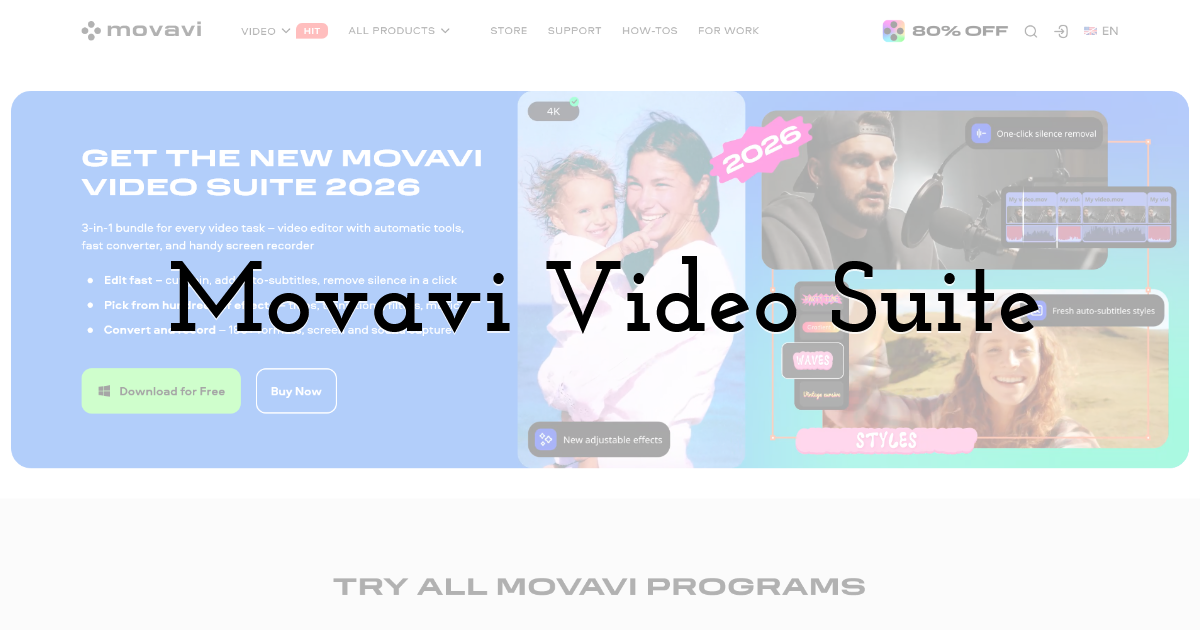
Movavi Video Suite covers ordinary video work rather than trying to act like a full agency system. The Suite includes a video editor, a converter, and a screen recorder, so the phrase all-in-one content creation software makes sense here in a specific way: recording, editing, and file preparation sit inside one product family.
The video editor is the main part for social media. It covers timeline edits, titles, subtitles, effects, audio cleanup, and vertical video formats. That is enough for Reels, Shorts, product clips, tutorials, course snippets, and small business videos. The screen recorder adds another use case: software walkthroughs, lessons, webinars, and quick explainers.
The converter also matters more than it may seem. Social posts often start as files that are too long, too large, or saved in the wrong format. A long recording can be trimmed, converted to MP4, or split into shorter clips (which, by the way, you can also do online here) before the final edit.
6. DocHipo
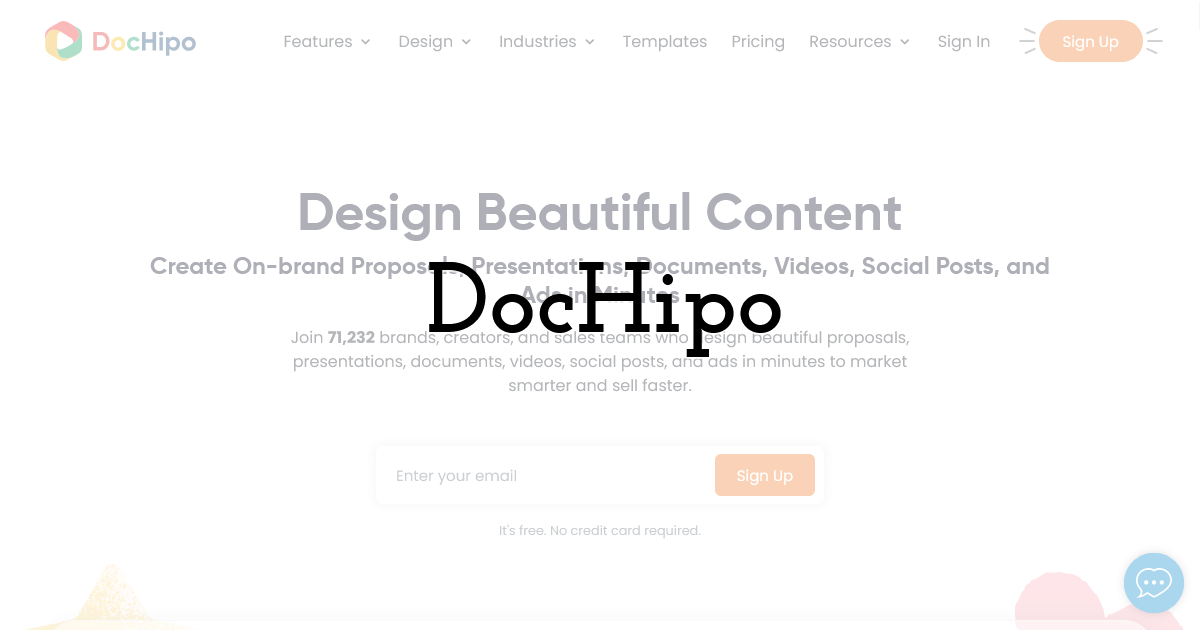
DocHipo is an intuitive visual content design platform that helps you create on-brand Facebook posts, Instagram posts and Stories, carousels, X posts, YouTube thumbnails, videos, web banners, and ad creatives with ease. Choose from thousands of professionally designed templates tailored to different industries, campaigns, and occasions to keep your social media presence fresh year-round.
Bring your ideas to life with customizable fonts, high-quality stock photos and videos, vector graphics, icons, charts, maps, backgrounds, and more. With DocHipo’s AI Writer, you can instantly generate captions, bios, taglines, ad copy, carousel text, and other social media content from a simple prompt. You can also create unique AI-generated images in a variety of artistic styles to make your designs stand out.
Save time with Smart Resize, which instantly adapts your design to multiple social media dimensions while maintaining visual consistency across platforms. Collaborate with your team in real time by sharing documents with controlled access, editing together, and reducing review cycles. Once your designs are ready, publish them directly from the editor to your favorite social media platforms.
7. DaVinci Resolve
DaVinci Resolve is the serious video editor. It is worth considering for YouTube videos, interviews, podcasts, ads, music clips, and social cutdowns from larger shoots.
The color tools are the main reason people stay with Resolve. Mixed lighting, several cameras, flat footage, and more careful skin tones are easier to manage here than in most mobile-first editors. Resolve also includes audio tools, motion graphics, effects, and detailed export settings.
It does ask for time. A creator making one casual Reel per week may not need it. Someone editing every week, learning color, or cutting longer videos will get more from it.
8. Descript
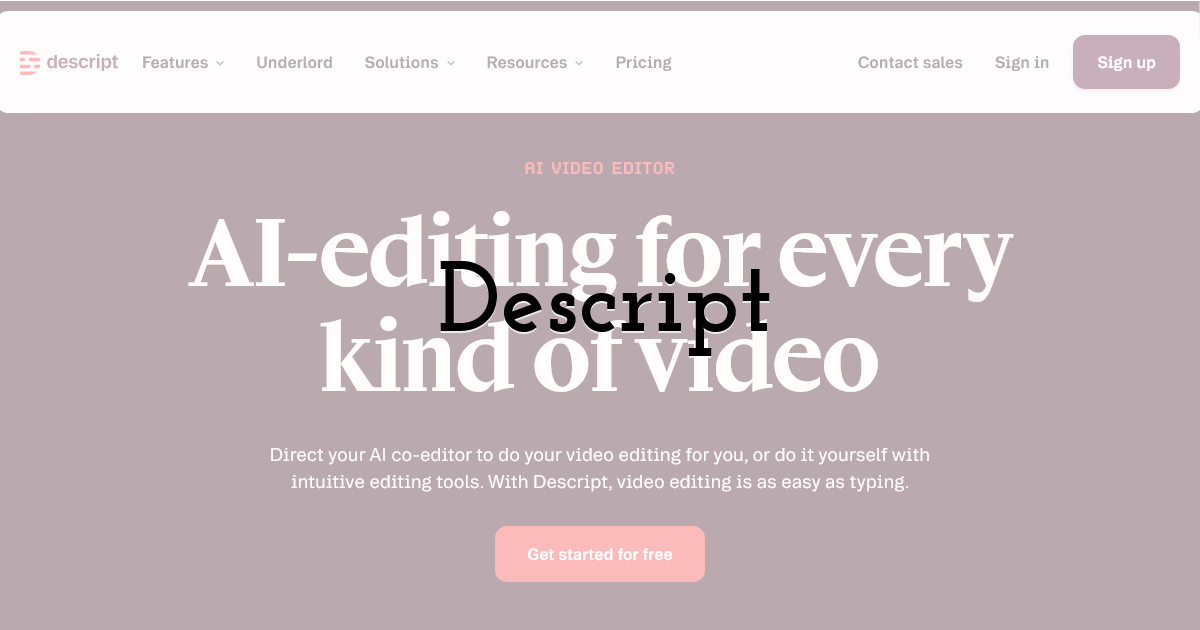
Descript handles speech-led video: interviews, podcasts, webinars, tutorials, and screen recordings with voiceover. The transcript is the edit surface. Remove a line from the text, and that part comes out of the video too.
That saves time on long recordings where the main job is cutting repeated phrases, empty pauses, or off-topic sections. Descript also adds captions and can pull short clips from longer videos, which matters for Reels, Shorts, LinkedIn clips, and content creation apps for Instagram.
There is a copywriting angle as well. Once the video is edited, Descript can help turn the transcript into titles, summaries, descriptions, and caption writing for social media. For color-heavy edits or complex motion work, a regular timeline editor is still the better choice.
9. Figma
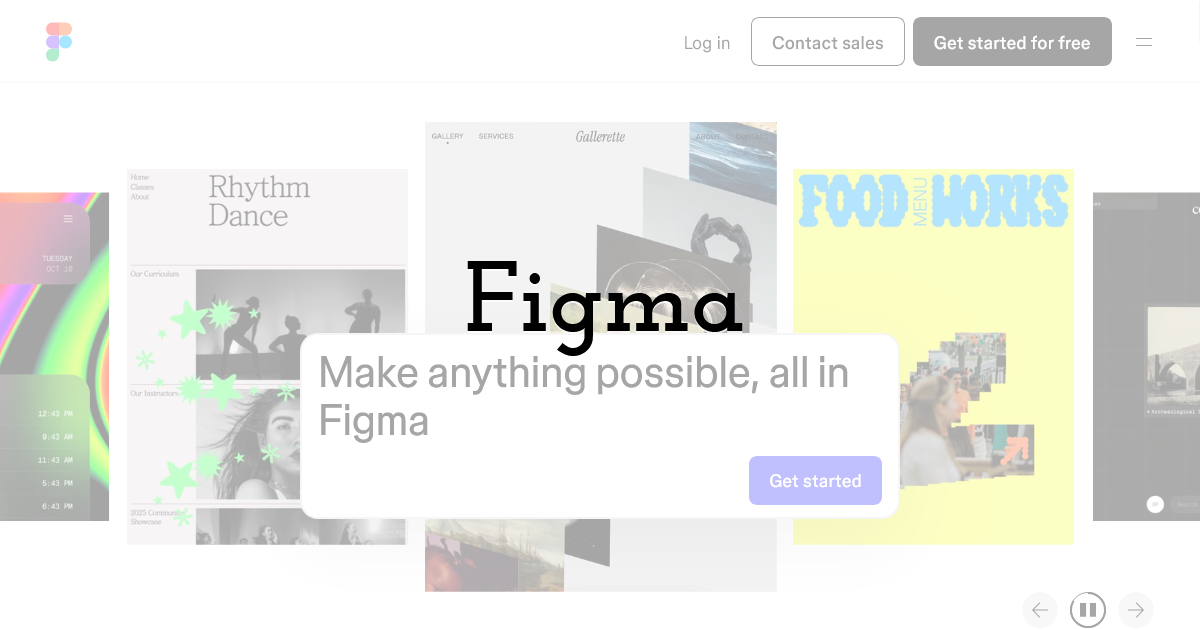
Figma is not a classic social media app, but it can be excellent for repeatable post systems. It is useful for carousels, ad layouts, thumbnail drafts, campaign boards, creator briefs, and design templates shared across a team.
The advantage is control over repeated formats. A designer can create frames for carousel slides, save text styles, lock brand spacing, and leave comments for writers or marketers. That keeps a campaign from drifting visually after ten posts.
Figma is not for retouching photos or editing videos. It works best as the layout and approval layer around a larger content process.
10. Buffer
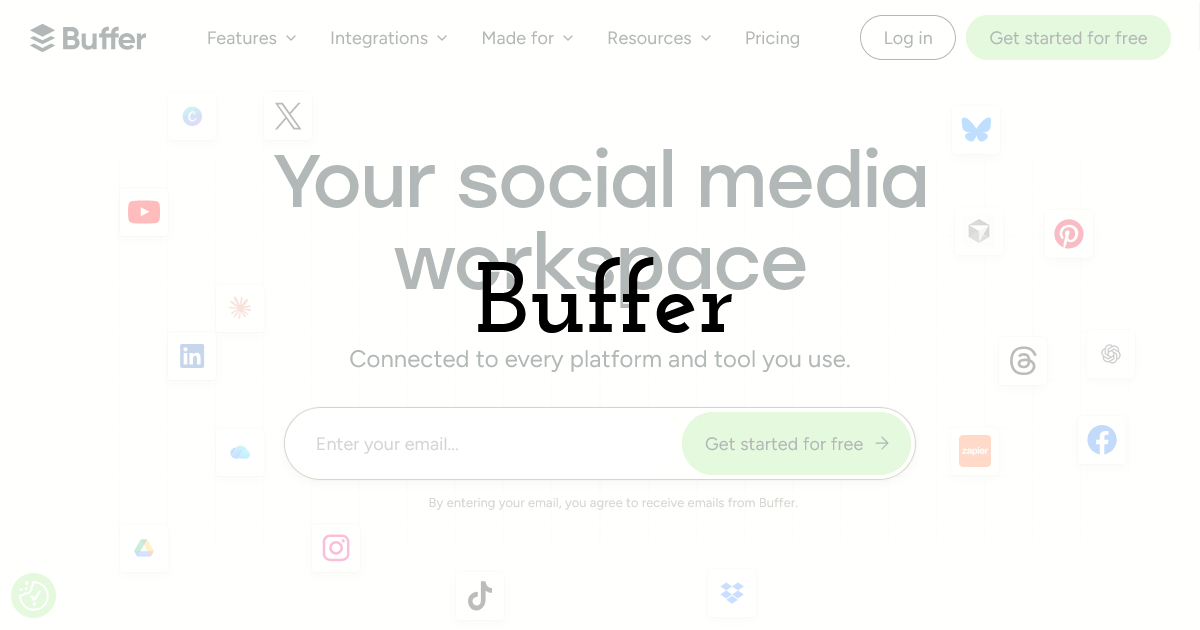
Buffer covers the writing and scheduling side. Caption writing for social media often takes longer than expected, especially when one idea needs different versions for Instagram, LinkedIn, TikTok, and X.
Its writing features can turn a rough note into several caption drafts, shorten a post, change the tone, or create variants for different platforms. The first draft still needs a human edit. Remove vague phrases, check product details, and make sure the caption sounds like the account that will publish it.
Buffer is also handy for storing post ideas before they are ready. That matters when a team has visuals, half-written captions, and campaign notes scattered across chats.
11. Later
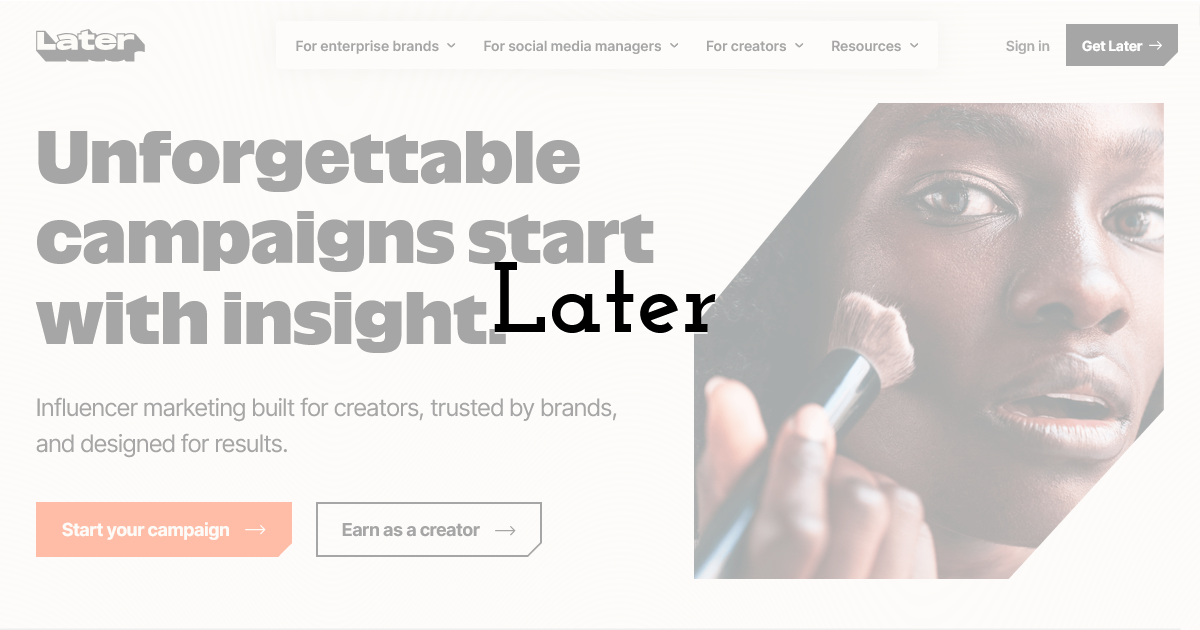
Among content creation apps for Instagram, Later is strongest near the planning stage. It is made for scheduling posts, previewing the grid, organizing media, and planning Reels, Stories, and feed content.
Instagram-heavy brands can use it to see how posts sit together before anything goes live. That is useful for launches, creator campaigns, seasonal content, and accounts where the grid still matters.
Later is not where the main creative work happens. Videos, photos, and captions should be mostly ready before they reach it. Its value comes from planning order, timing posts, and keeping the calendar readable.
How to Choose the Right Stack
Start with the work that repeats. If most posts are product photos, build around Lightroom, Photoshop, and Canva. If the calendar is mostly short video, start with CapCut or Movavi Video Suite, then add Resolve or Descript only when the edits demand it. If captions slow everything down, Buffer deserves a place earlier in the process.
A smaller stack used every week is better than ten apps opened once a month. Choose the tools around real post formats, file problems, and approval steps. That will make the content process faster in a way the team can actually feel.
Until next time, Be creative! - Pix'sTory
Recommended posts
-
Increase Social Media Engagement with Professional Photo Editing for Smal...
Read More › -

How to Easily Create Content for Your Blog with AI Technology
Read More › -

Software Engineering Tools That Affect Team Productivity
Read More › -
Social Media Trends in 2020
Read More › -

5 Mistakes in UX Writing that Ruin Customer Experience
Read More › -

How to Make Your Social Media Posts Stand Out?
Read More ›