Video Editing on Windows for Creatives: Best Tools and Workflow Tips for Non-Mac Users
For years, iMovie has been the default recommendation for designers who want to turn visuals into video. Clean interface, smooth timeline, easy exports. The catch, of course, is that iMovie only works on macOS. If you’re a designer, illustrator, or content creator working on Windows, that limitation can feel frustrating at first.
The good news? Video editing on Windows is not only possible. It's flexible, powerful, and often more customizable than people expect. Today’s Windows editors cover everything from quick social clips to motion-heavy design presentations. And yes, there are solid alternatives to iMovie that don’t require switching platforms or relearning everything from scratch. For example, a user-friendly yet complete video editor iMovie for Windows available at https://imovie-for-windows.com/.
Let’s break down the best Windows video editors for creatives and, just as importantly, how to build a smooth workflow that fits design-driven projects.
Why Designers on Windows Are No Longer at a Disadvantage
Video creation has shifted. It’s no longer reserved for filmmakers or YouTubers with complex setups. Designers now create videos for:
- • Portfolio presentations
- • Animated mockups
- • Brand stories
- • Social media posts
- • UI and product demos
On Windows, you can mix static graphics, exported animations, layered PSDs, SVGs, and sound just as easily as on Mac. The tools may look different, but the results don’t have to be.
What matters most isn’t the operating system, it’s the workflow.
What to Look for in a Windows Video Editor as a Creative
Before choosing software, it helps to know what features actually support design-based video work:
- • Timeline clarity – You want layers that behave predictably
- • Image-first workflows – Strong handling of PNG, JPG, SVG sequences
- • Text and title tools – Typography matters
- • Transitions and keyframes – Subtle motion over flashy effects
- • Export flexibility – Social, web, and presentation formats
With that in mind, here are four Windows editors that creatives consistently rely on.
Shotcut – Clean, Open-Source, and Surprisingly Capable
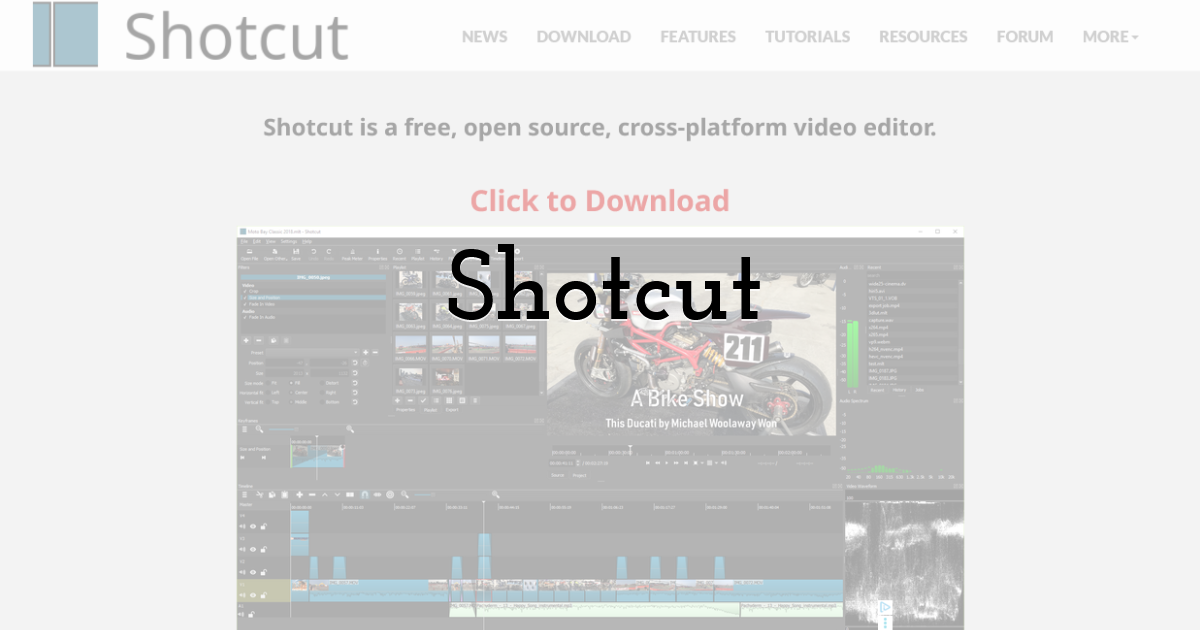
Shotcut is often underestimated because it’s free and open-source. But for designers, it’s a quiet workhorse.
It handles high-resolution images well, supports transparent video layers, and offers a straightforward timeline that feels logical rather than intimidating. You can stack graphics, animate opacity, apply filters, and export in modern formats without unnecessary friction.
Best for: Designers who want control without clutter.
Pros:
- • Free and lightweight
- • Excellent format support
- • Simple, uncluttered interface
Cons:
- • Limited built-in motion presets
- • No advanced animation system
Shotcut shines when your project is about composition, pacing, and visual clarity rather than heavy effects.
OpenShot – Beginner-Friendly with Creative Potential
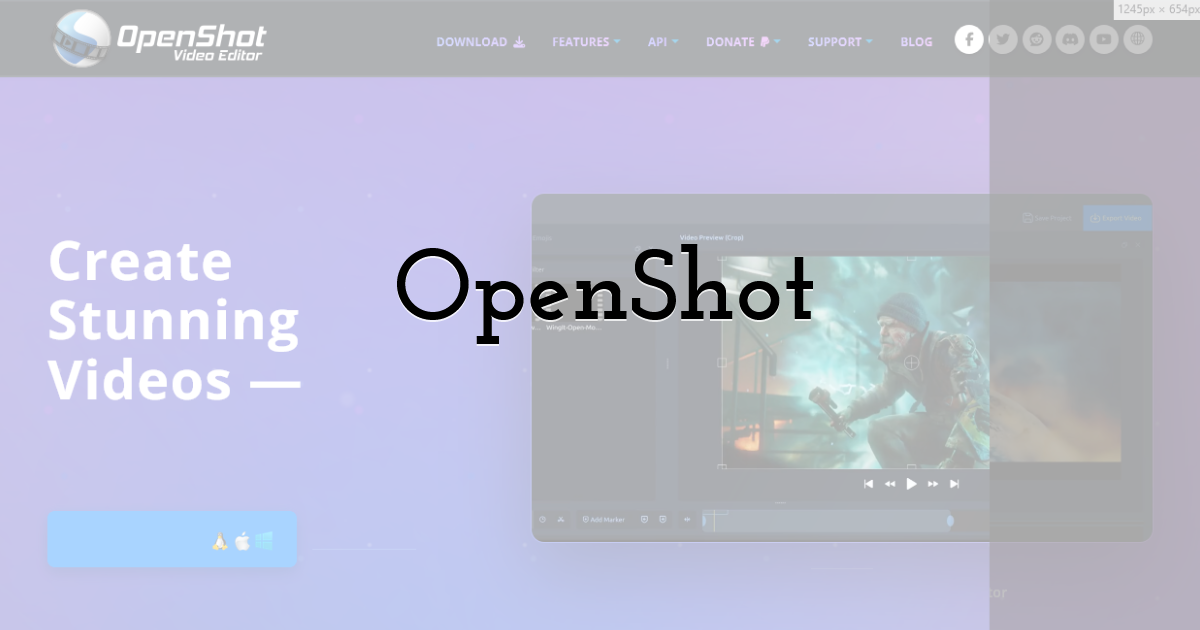
OpenShot feels approachable from the first launch. Large icons, clear menus, and an interface that doesn’t overwhelm. For creatives who are new to video, this matters.
It supports layered editing, animated titles, and basic keyframing. You can drop in images, add transitions, adjust timing, and export quickly. It’s especially useful for designers creating slideshow-style videos or simple animated stories.
Best for: Creatives stepping into video for the first time.
Pros:
- • Easy to learn
- • Built-in animated titles
- • Good for quick visual storytelling
Cons:
- • Can slow down with large projects
- • Fewer advanced controls
If your goal is to turn static visuals into engaging video without technical stress, OpenShot is a comfortable starting point.
DaVinci Resolve – Professional Power, Creative Freedom
DaVinci Resolve sits at the opposite end of the spectrum. It’s powerful, deep, and used in professional studios. For designers who want cinematic polish, it offers unmatched color control and precise editing.
Resolve is excellent for blending design and video when color, contrast, and mood are central to the project. It also supports Fusion, a node-based system for advanced motion graphics.
That said, it demands commitment.
Best for: Advanced creatives aiming for high-end visual results.
Pros:
- • Industry-grade color correction
- • Advanced animation and compositing
- • Free version is very capable
Cons:
- • Steep learning curve
- • Requires a strong PC
DaVinci Resolve isn’t for quick edits. It's for projects where quality is the priority.
VSDC Free Video Editor – Flexible and Surprisingly Designer-Friendly
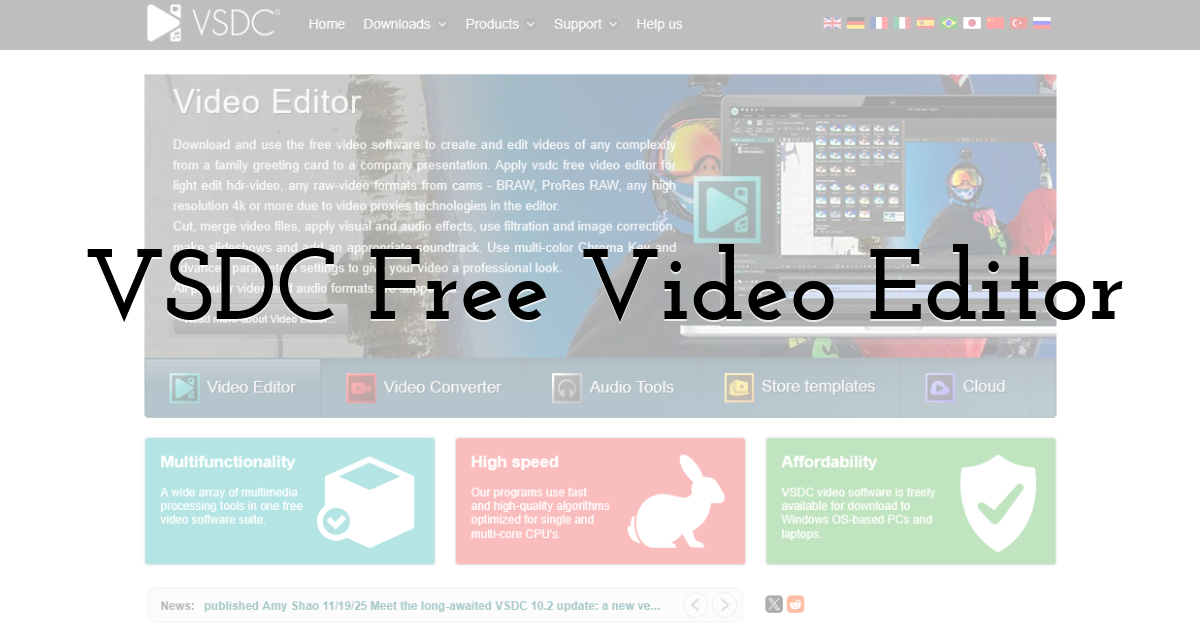
VSDC often flies under the radar, but it deserves attention. Unlike many editors, it uses a non-linear object-based approach. You place elements freely on the timeline rather than stacking tracks in strict order.
For designers, this feels natural. Images, text, shapes, and effects behave like design layers rather than video clips. You can animate movement, opacity, and rotation without complex keyframe systems.
Best for: Designers who think visually rather than sequentially.
Pros:
- • Object-based editing
- • Strong text and shape tools
- • Good performance on mid-range PCs
Cons:
- • Interface feels unusual at first
- • Some features are locked behind the Pro version
VSDC works especially well for explainer videos, animated posters, and graphic-heavy content.
A Simple Video Workflow for Designers on Windows
Tools matter, but workflow matters more. Here’s a process that keeps things efficient and creative.
1. Prepare Visual Assets First
Export graphics at consistent sizes. Use transparent backgrounds where possible. Keep file names clear. This saves hours later.
2. Think in Scenes, Not Clips
Designers often think in layouts. Translate that mindset to video. Each “scene” is a layout with motion.
3. Add Motion Sparingly
Small movements feel more professional than dramatic effects. Animate opacity, scale, and position before reaching for complex transitions.
4. Use Sound as Structure
Music helps define pacing. Even minimal sound can transform static visuals into a narrative.
5. Export Early and Often
Preview on different screens. A video that looks perfect in the editor may feel different on mobile.
Integrating Design Projects into Video Content

One of the biggest advantages of working on Windows is flexibility. You can move assets freely between design software and video editors. Illustrator files, Photoshop exports, UI mockups – they all translate well.
Windows editors don’t limit creative direction. They simply require a slightly different approach than iMovie. Once you adjust, the process becomes just as intuitive.
Final Thoughts:
Video editing on Windows is no longer a compromise. It’s a choice.
Whether you prefer the simplicity of OpenShot, the structure of Shotcut, the depth of DaVinci Resolve, or the creative freedom of VSDC, there’s a tool that fits your style. Designers don’t need iMovie to tell visual stories. They need clarity, control, and a workflow that respects their creative process.
Once you find the right editor, video becomes another design surface. And Windows handles it just fine.
Until next time, Be creative! - Pix'sTory
Recommended posts
-
Video Editing on Windows for Creatives: Best Tools and Workflow Tips for...
Read More › -
Solid, Linear and Radial Gradient Colors Explained
Read More › -

How to Increase Your Video Course Sales with Affiliate Marketing
Read More › -
Know How to Align Objects
Read More › -

Why Every Marketer Needs an AI Video Generator in 2026
Read More › -
How to Add Shapes
Read More ›