What Can an AI Video Editor Change? 6 Prompt-Based Edits That May Save a Reshoot
A nearly usable video can become expensive when one detail is wrong. The location looks dated, an unwanted object draws attention, or the weather conflicts with the campaign. Reshooting may feel like the safest answer, yet many presentation problems affect only part of the frame. This guide explains six prompt-based edits worth trying first, how to describe them clearly and when the source footage still needs to be regenerated or filmed again.
What Can an AI Video Editor Change Without a Reshoot?
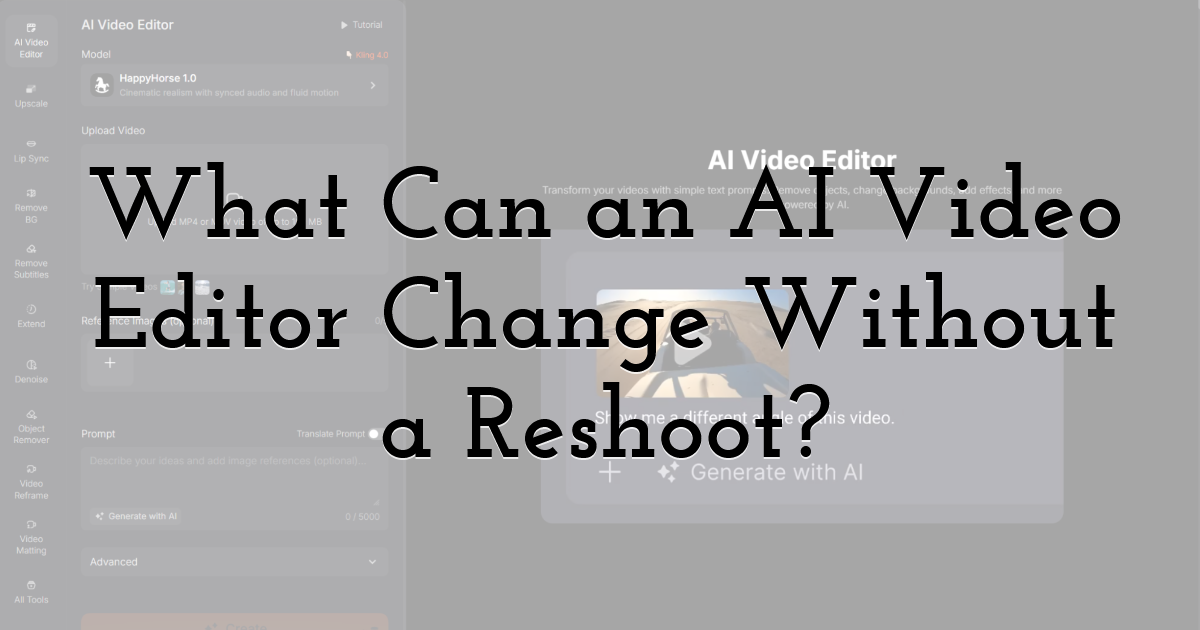
An AI video editor can change local presentation details when the subject, action and essential information in the source clip are already correct. It is most useful for controlled visual revisions, not for inventing missing evidence or replacing a fundamentally wrong performance.
Creators can edit video with AI prompts by uploading an existing clip and describing the change in ordinary language. Pollo AI lists controls for subject appearance, weather and atmosphere, visual effects, object removal, background replacement and camera-angle changes. Those options are valuable when the campaign idea is sound but the presentation needs one focused correction. The safest workflow protects everything that is already accurate and changes only the detail named in the prompt.
| Current input | Page specification |
|---|---|
| Video upload | MP4 or MOV up to 100 MB |
| Reference images | Up to five optional images |
| Prompt | Up to 5,000 characters |
| Displayed model | Kling 4.0 at the time of writing; availability may change |
Which 6 Prompt-Based Video Edits May Save a Reshoot?
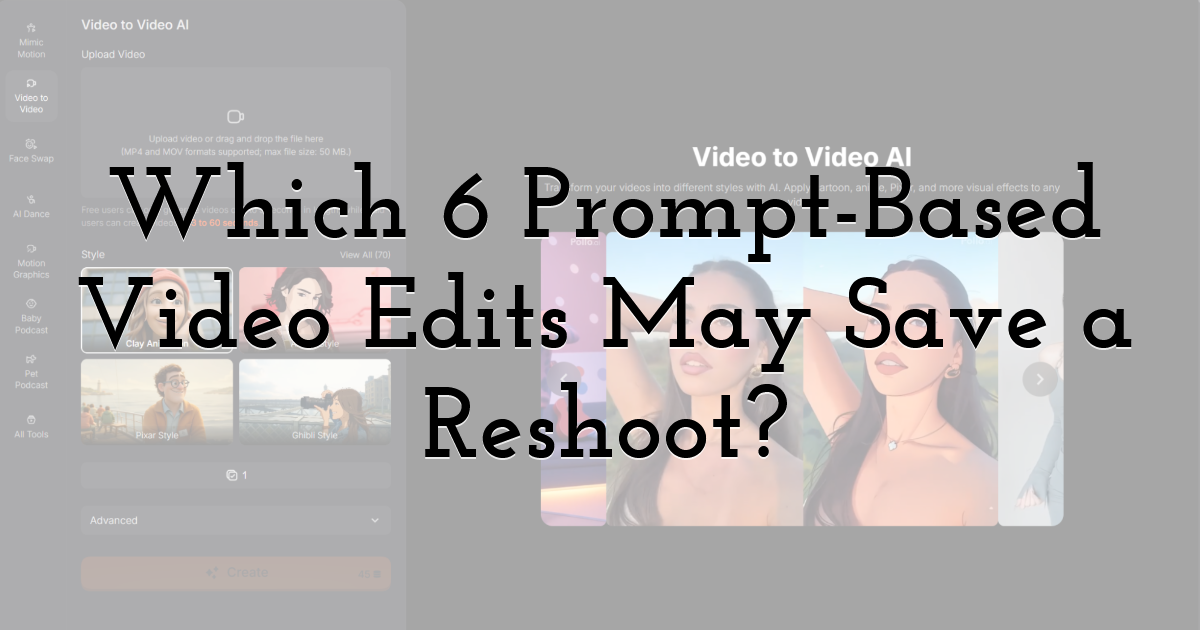
The best candidates are edits that alter context or presentation while preserving the video's core action and factual meaning. Try the following changes one at a time so you can identify which instruction caused an unwanted result.
1. Remove a distracting object. Ask for one clearly located object to disappear, such as a cable beside the product or a passer-by in the background. State that the subject, hands and nearby surfaces must remain unchanged.
2. Replace the background. Describe the new environment and the details that must stay fixed. A clean studio, transparent background or seasonal setting is easier to review when the foreground subject is already well separated.
When do you need a broader transformation? When the entire clip needs a new art direction rather than one local repair, restyle footage with video to video AI and compare it with a targeted editor prompt. Use the broader transformation only when changes across the full frame are intentional.
3. Adjust weather, time or atmosphere. Change a bright afternoon to a rainy evening or cool a scene that feels too warm, but check whether reflections, shadows and clothing still match the new condition.
4. Modify subject appearance carefully. A wardrobe refresh or age adjustment can support a concept, but identity, consent and brand accuracy must be reviewed. Do not use the edit to create a false endorsement or experience.
5. Add a restrained visual effect. Rain, sparks, film grain or a stylised look should strengthen the message rather than cover weak footage. Specify intensity, location and duration instead of asking for a dramatic effect everywhere.
6. Request a more useful camera view. A wider or more dynamic angle may improve context, but generated areas must be checked for warped products, unstable faces and invented details outside the original frame.
Which Video Problems Still Need Regeneration or Reshooting?
Regenerate or reshoot when the missing information is central to the action, product truth or credibility of the scene. Editing can change presentation, but it cannot reliably recover facts that were never captured.
| Problem | Best first action | Reason |
|---|---|---|
| Background clutter | Edit | The subject and action can remain intact |
| Wrong weather or mood | Edit | Atmosphere is a presentation layer |
| Incorrect product model | Reshoot or replace source | Commercial information is wrong |
| Missed physical action | Regenerate or reshoot | The required performance is absent |
| Heavy blur on the main subject | Use a better source | Identity and detail cannot be trusted |
How Do You Write a Better AI Video Editing Prompt?
A useful editing prompt names the target, the change and the details that must remain fixed. Avoid combining several unrelated requests in one sentence.
Use a simple structure: 'Change [specific target] to [desired result], while keeping [protected details] unchanged.' For example: 'Change the sunny background to a light rainy evening, while keeping the presenter, red jacket and product label unchanged.' Add intensity or duration only when it matters. If the first result changes too much, shorten the prompt and protect fewer but more important details instead of adding a paragraph of conflicting instructions.
How Should You Review an AI-Edited Video?
Compare the edited clip with the source frame by frame before deciding that the reshoot has been avoided. Check accuracy before visual appeal.
Inspect the subject's face, hands, product shape, logos, text, shadows and contact points around the edited area. Watch the transition into and out of the change at normal speed and in slow motion. Confirm that the new background or atmosphere does not create false information about the location, product or event. Add prices, captions and legal text during a controlled finishing step, where spelling and timing can be checked.
Ready to Try a Prompt-Based Edit with Pollo AI?
Start with the smallest visible problem in a clip that is otherwise accurate. Upload the video to Pollo AI Video Editor, describe one change and protect the subject or product details that matter. Compare the result with the original before attempting a second edit. A focused first test will show whether the clip can be rescued without turning a simple correction into another full production cycle.
Until next time, Be creative! - Pix'sTory
Recommended posts
-
The New Era of AI Video Creation: What Makes People Keep Watching
Read More › -

How Designers Create and Improve Visual Content Faster Using AI
Read More › -
What Is the Fastest Workflow from Idea to Finished Presentation?
Read More › -
AI Interview Tool vs. Traditional Interview Process: Pros and Cons
Read More › -

Free Stock Photos - Full List of Websites Where You Can Get Them
Read More › -
Video Editing on Windows for Creatives: Best Tools and Workflow Tips for...
Read More ›